Declarative Agents with Work IQ MCP Servers
It has been a while since I last looked into Agent 365 SDK, and since then a couple of interesting things have happened.
First of all, a release date has been announced for Microsoft 365 E7, a new type of license that includes Agent 365 capabilities. It is worth noting that the parts of Agent 365 that have to do with agentic identities and autonomous agentic users will not be GA on 1st of May, and licensing details regarding this are yet to be announced. This is a bit of a bummer, since I have spent a lot of time the last few months exploring the agentic parts of Agent 365 (see for example here and here), and it would have been cool to be able to test it in production. But for the time being, agentic users stays in the Frontier program and we’ll have to wait a bit longer until the agentic bits become generally available. Good things to those who wait!
The parts of Agent 365 that go GA in May are all about agents acting “on-behalf-of” the user, as well as a lot of agent governance goodies. Check out this Agent 365 AMA for a deep-dive, and a good explanation of what is coming in May.
Another thing that has happened is that the Agent 365 tooling servers have been rebranded to Work IQ MCP. This is how Work IQ is described by Microsoft:
“Work IQ is the intelligence layer that grounds Microsoft 365 Copilot and your agents in real-time, shared context across your organization.”
So from a product/marketing perspective I guess it makes sense to “move” the MCP Servers from Agent 365 to Work IQ, as it positions Agent 365 as being all about agent governance, while Work IQ deals with the data.
The Work IQ MCP Servers
Since Ignite 2025 I have done a lot of demos and blog posts about the Agent 365 MCP servers (now called Work IQ MCP), for example:
-
Two blog posts describing how to use the MCP Servers from a custom agent - part 1 and part 2.
-
A post about how to use an (at that time) undocumented feature for creating custom MCP Servers in Agent 365.
-
A post about how to let an agent respond to Word comments and send emails using the Agent 365 notification functionality.
Lately, it seems that these MCP servers have gotten much easier to access and to use, something that I explored in a recent LinkedIn post where I tried out the servers from VS Code.
It has really started to felt like the tooling for agents in the Microsoft ecosystem is starting to come together now, and with the Work IQ MCP Servers we have pretty much everything we need to do work in Microsoft 365 work from an agent. Exciting times, for sure!
The Work IQ MCP Servers are still documented as part of the Agent 365 docs. At the time of writing, these are the available MCP Servers:
- Work IQ Copilot
- Work IQ User
- Work IQ Mail
- Work IQ Calendar
- Work IQ Teams
- Work IQ Word
- Work IQ OneDrive
- Work IQ SharePoint
- Dataverse MCP Server
- Microsoft MCP management MCP server
When it comes to data retrieval, the Work IQ Copilot MCP Server is the “swiss army knife” that allows for retrieval of pretty much all your M365 data. It has only one tool - copilot_chat - and the description is pretty telling:
Use this tool for any user request that might require finding, searching, discovering, or locating information contained within Microsoft 365 content—including documents, PDFs, spreadsheets, emails, sites, reports, or files—regardless of whether the question appears general or domain-specific.

If the user's request could plausibly be answered using organizational content, you must invoke this tool unless a workload-specific tool exists for that scenario. When no dedicated tool (mail, calendar, Teams, OneDrive, SharePoint, etc.) is available, this tool becomes the primary mechanism for retrieval.

If the request mentions a specific workload and its tool is unavailable, you might use this search tool as a fallback. If the search tool can't retrieve the information, clearly state that the information isn't accessible from the available tools instead of answering from general knowledge.
So this truly is (or should be) the “one MCP Server to rule them all”, at least when it comes to data retrieval. When it comes to updating data it is a different story, and that is what the rest of the MCP Servers are for. More on that later.
So much cool stuff from Redmond
Just the last couple of weeks so much cool stuff has come out from Microsoft, that it has honestly been hard to keep up. If you follow me on LinkedIn, you probably know that I have spent a lot of time the last six months exploring various specifications for agentic user interfaces, such as AG-UI, A2UI and MCP Apps. Lately, it has been really exciting to see these specs have finally made their way into the Microsoft ecosystem:
-
On 9th of March it was announced that MCP Apps and OpenAI Apps SDK would be available for Copilot declarative agents. I posted a video to LinkedIn where I ran Doom in a Copilot agent, by serving it as a OpenAI Apps SDK resource from an MCP Server.
-
Then it was announced that a custom Copilot agent could be used from a model-driven Power App, which I also tried out.
-
And if that was not enough, it was announced that a model-driven Power App could be exposed as an MCP Server that could be used from a declarative Copilot agent - and that also served some custom UIs! I created a demo of this also.
It seems that lately all this awesomeness has come to Copilot Declarative agents. And the single thing that enables all of the coolness is the ability to use MCP Servers from a declarative agent.
What is a declarative agent? Well, basically it is a no-code agent that can be put together declaratively (through lots of bundled files that describe the agent capabilities). A suggested way of doing this is to use the Microsoft 365 Agents Toolkit, a VS Code extension that makes it possible to create such agents in a simple way.
So, since it is possible to use MCP Servers from a declarative agent, then we must of course try to use the Work IQ MCP Servers from a declarative agent!
Using Work IQ MCP servers from a Microsoft 365 Copilot declarative agent
First of all, we need a way of finding out the metadata for the Work IQ MCP Servers, so we can add them to our declarative agent. Haven’t found this in the docs yet, but deeply hidden in this PR we can find a file that contains URLs to the various Work IQ MCP Servers. Example:
  "WorkIQ-Me-MCP-Server": {
      "url": "https://agent365.svc.cloud.microsoft/agents/tenants/<TENANT_ID>/servers/mcp_MeServer",
      "type": "http"
      ...
    }
Replace <TENANT_ID> with your own tenant ID, and you have the MCP Server URL.
So, now that we have the MCP Server URLs, let’s try to add them to a declarative agent using the Microsoft 365 Agents Toolkit extension in VS Code. Install the extension, click the “M365” button and hit “Create a new agent/app”:
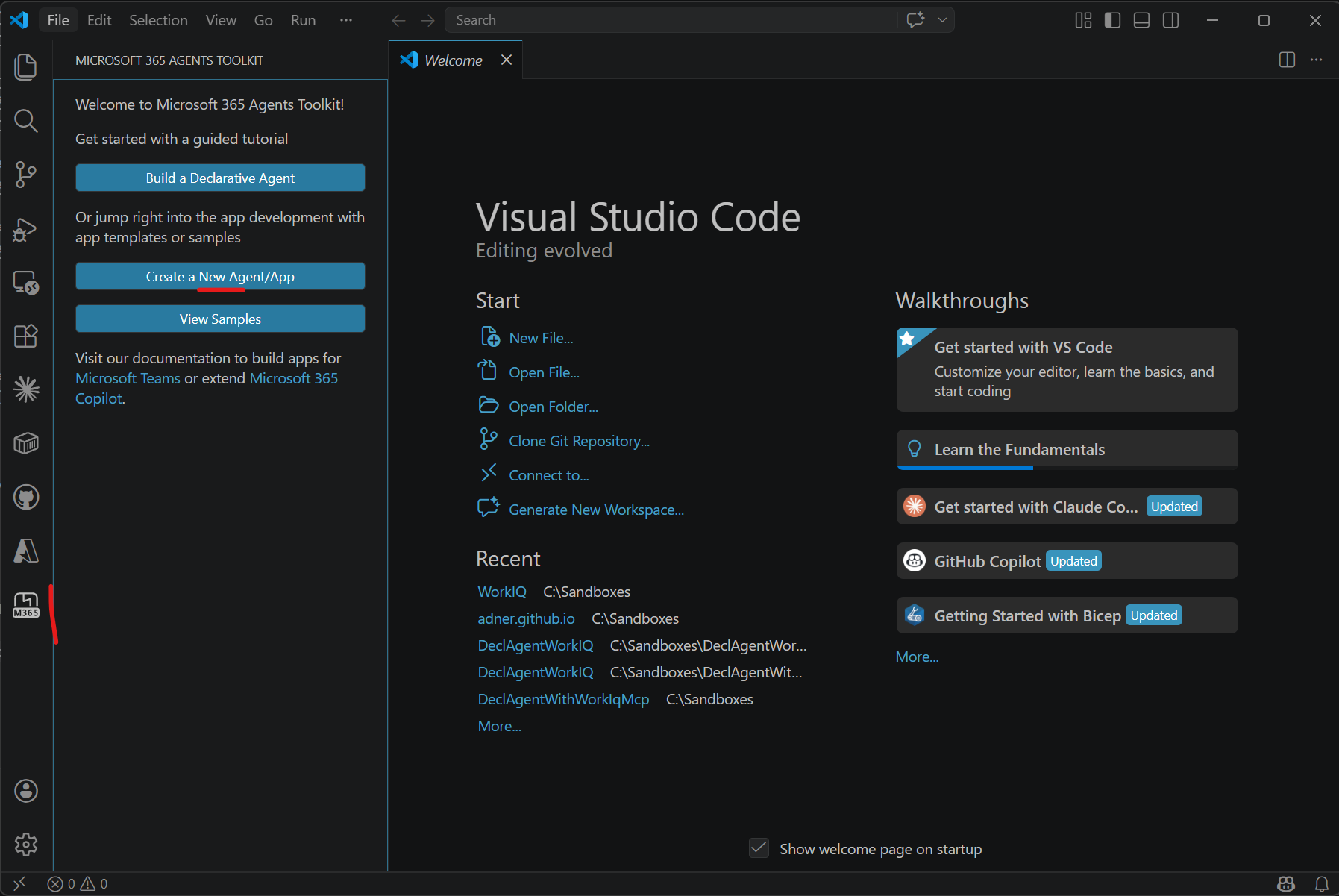
Then, select “Declarative agent” -> “Add an action” -> “Start with an MCP Server”, and then add the URL to the MCP Server. This scaffolds the declarative agent project, and adds your MCP Server to the mcp.json file:
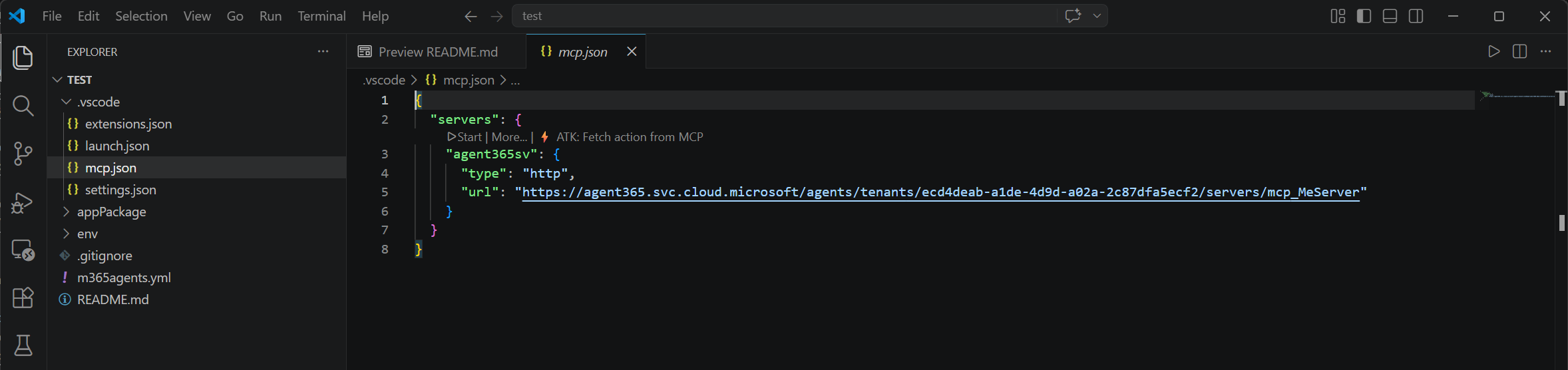
Click “Start” to run the MCP Server. After authenticating, you can see that the MCP Server is connected and the tools (5 of them, in this case) are loaded:

Then, click “ATK: Fetch action from MCP” to add the MCP Server tools to the ai-plugin.json file. Select all tools that you want to add:
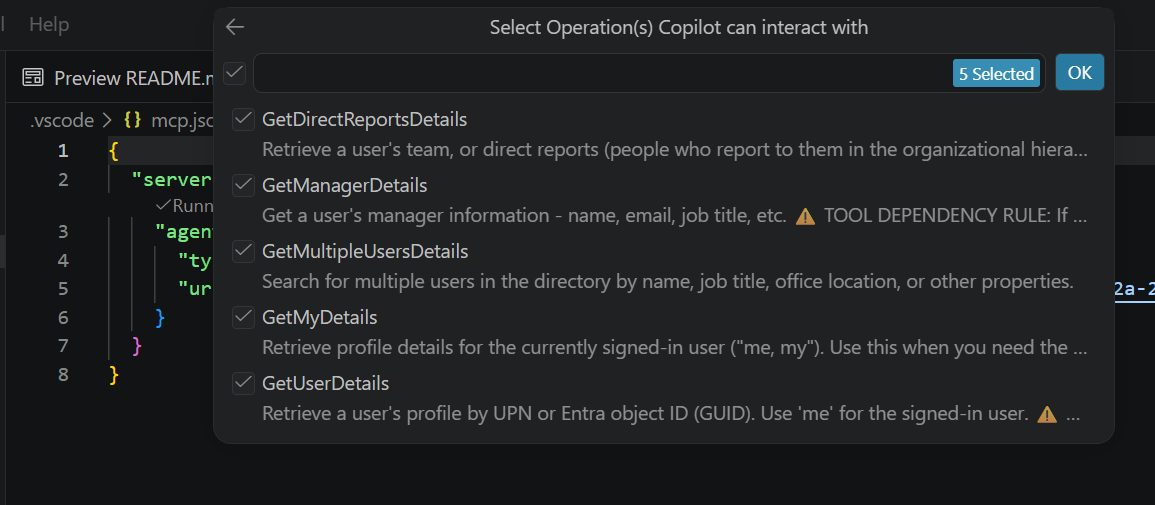
For auth, select “OAuth (with static registration)”:
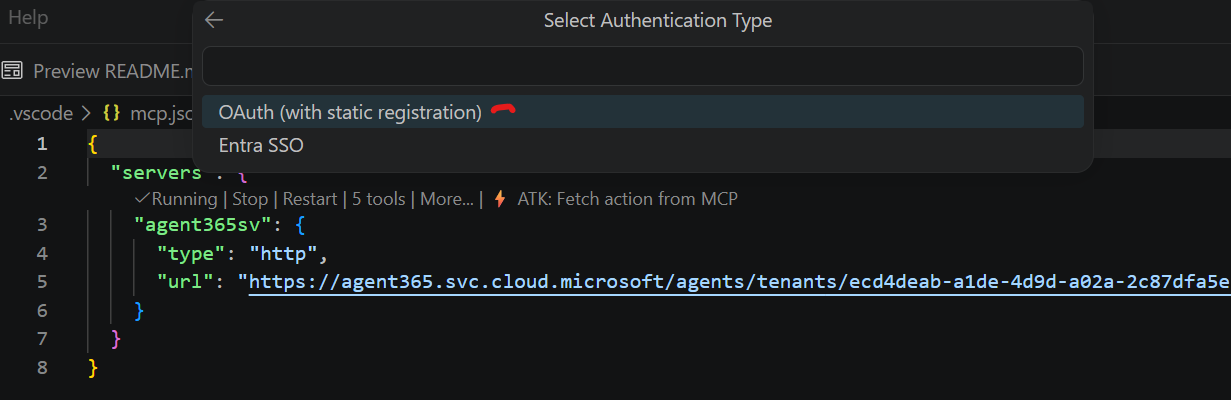
You will see an error message saying Unable to find the authentication metadata in the MCP server, which you can disregard for now. The Work IQ MCP Servers unfortunately don’t publish authorization config information even though they SHOULD, so we will add this info manually later (for a previous rant about the Agent 365 MCP Server not being MCP spec compliant, see this post).
Now two things have happened:
ai-plugin.jsonhas been updated with descriptions for all the tools that are exposed by the added MCP Server.m365agents.ymlhas been updated with infra provisioning information.
Now it is time to add the missing authorization information to the m365agents.yml file. Add the following rows:
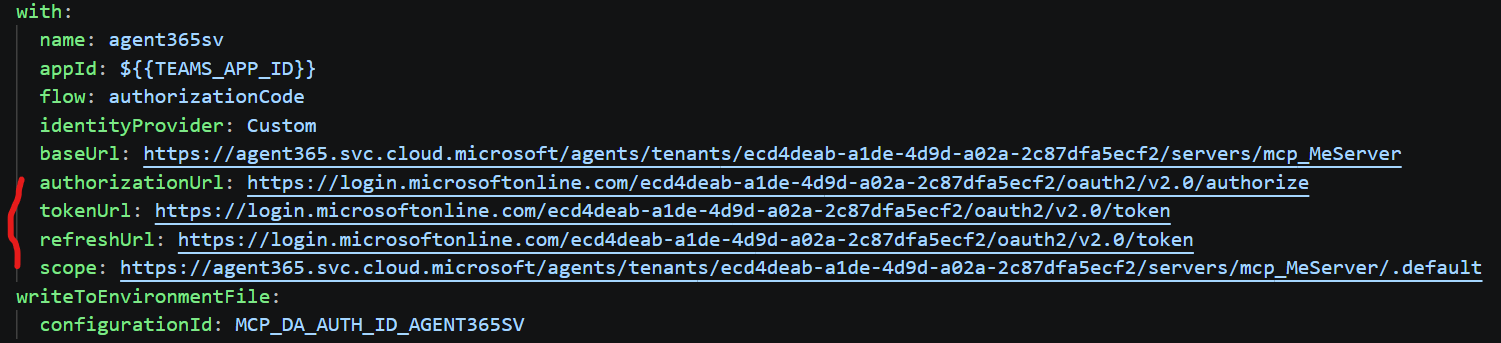
Make sure to replace the GUID:s with your Tenant ID!
Next, we need to setup the infra necessary to make it possible to do OAuth2 authentication with the MCP Servers. How to accomplish this for declarative agent MCP plugins is described here in the docs.
First, we need to add an App Registration to Entra ID. Create the app registration and:
-
Create a web redirect URL that points to:
https://teams.microsoft.com/api/platform/v1.0/oAuthRedirect -
Make a note of the app registration ID.
-
Create an app registration secret and make a note of it.
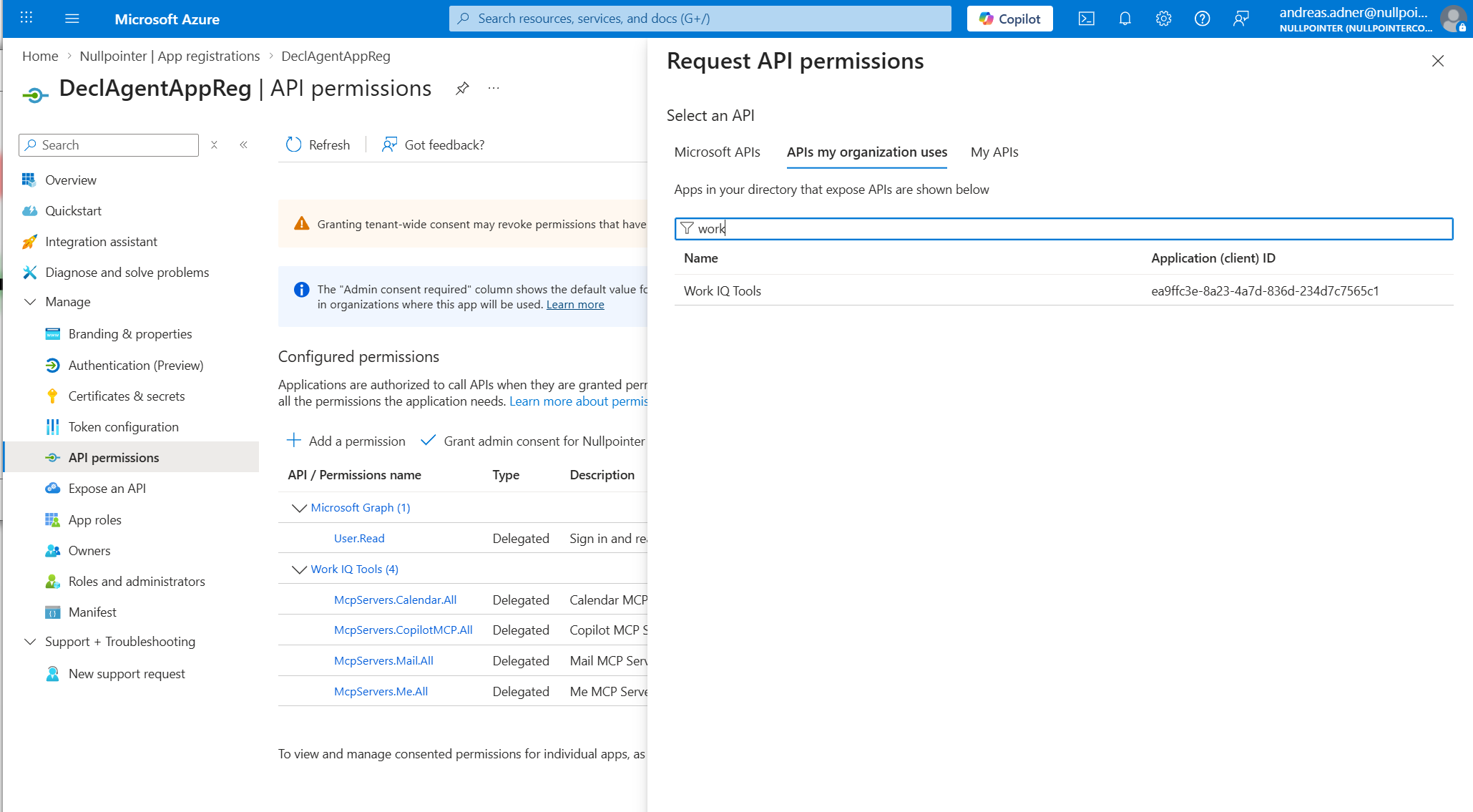
Then, add API permissions for the Work IQ MCP Servers that you intend to use in your declarative agent, and grant admin consent for these.:
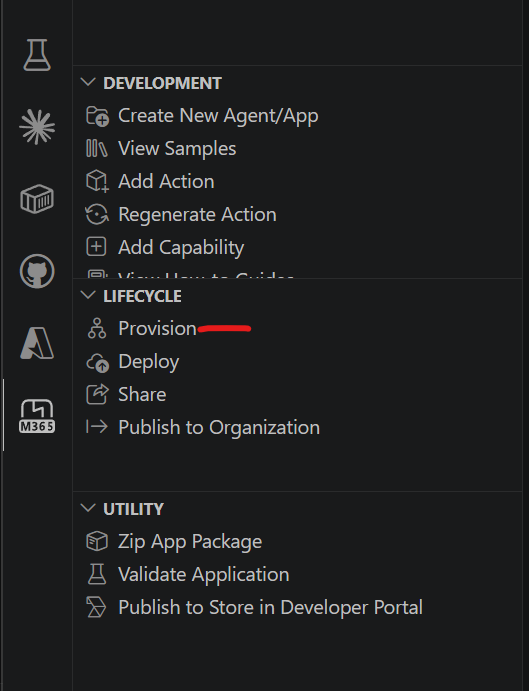
Back in VS Code, click “Provision” in the “M365 Agents Toolkit” pane:
In the dialogs that are shown, enter:
-
The ID for the application registration that you created earlier.
-
The Client Secret that you created earlier.
-
The MCP Server scope (same as you added to the
m365agents.ymlfile, for examplehttps://agent365.svc.cloud.microsoft/agents/tenants/<YOUR TENANT ID>/servers/mcp_MeServer/.default)
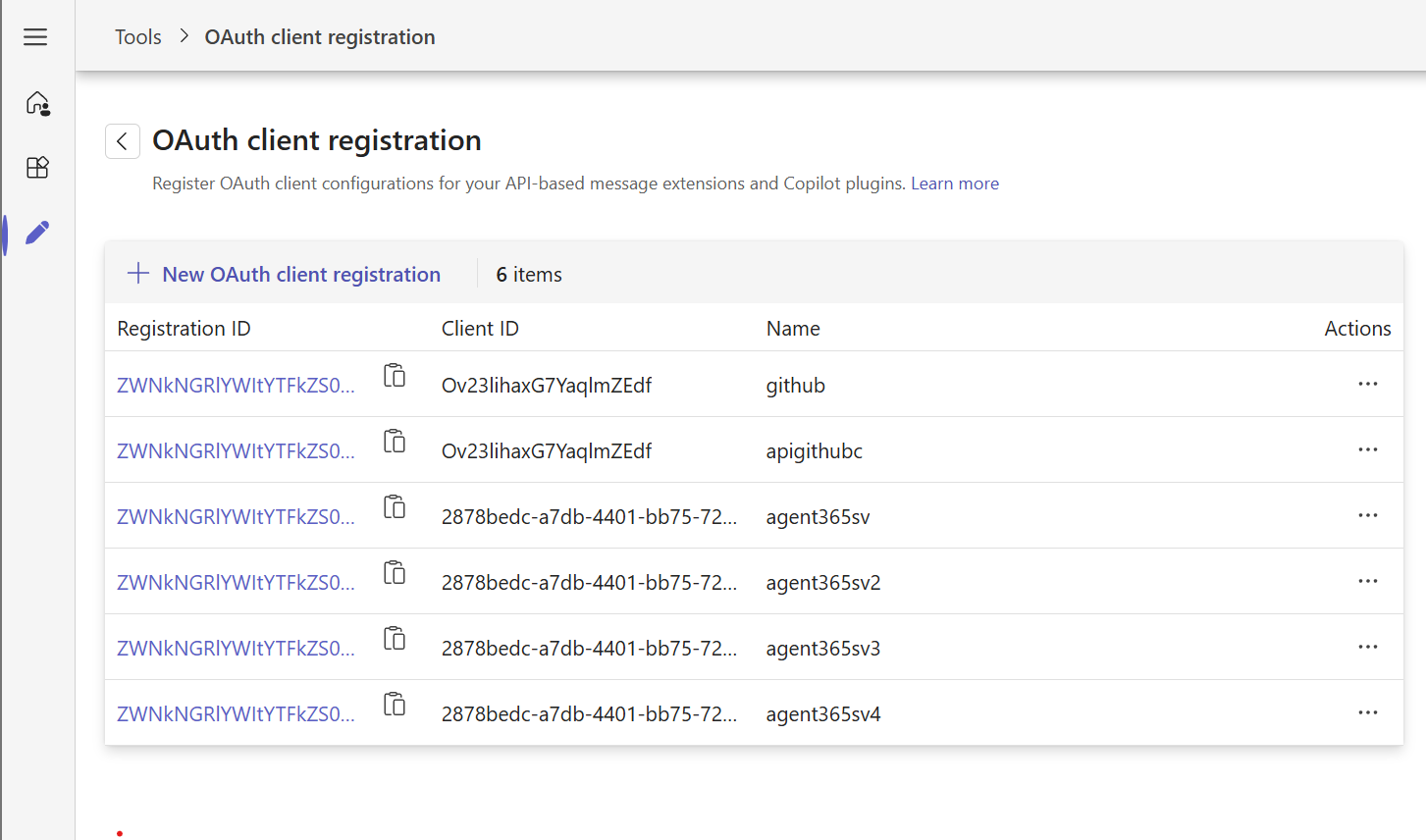
Now M365 Agent Toolkit will create the infra for your agent, and when completed you can find the agent in the Teams Dev Portal: https://dev.teams.microsoft.com/. There, you can also see that OAuth client registrations have been created for all the MCP Servers that you added. This allows you to authenticate against the Work IQ MCP Servers when using the agent:
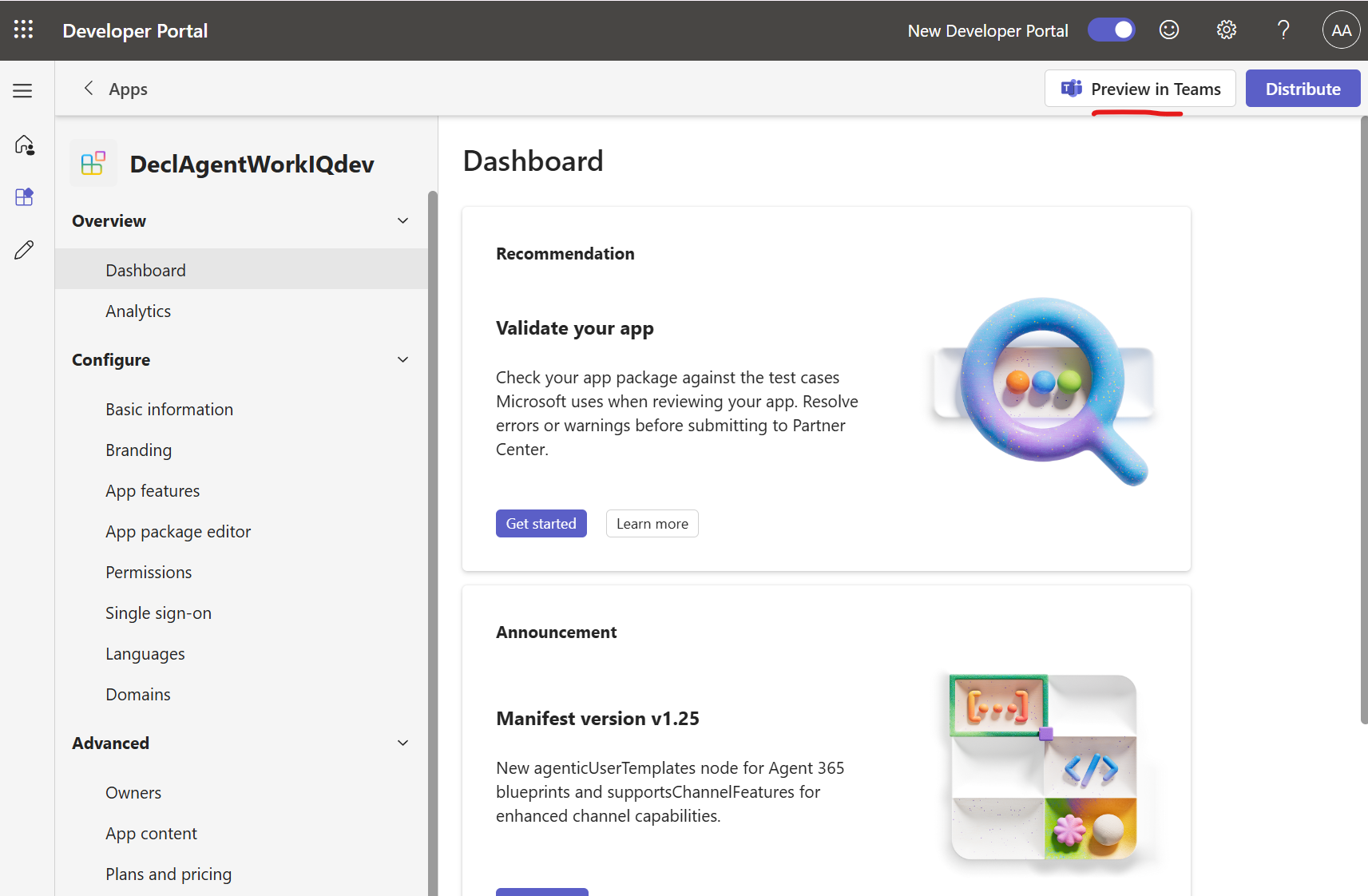
You can now try your agent by opening it up in the Teams Dev Portal, and clicking “Preview in Teams”:
You should now have a working declarative agent that uses the Work IQ MCP Servers!
In the video below I have wired up the agent with the mcp_MeServer, mcp_CalendarTools, mcp_MailTools and mcp_M365Copilot Work IQ MCP Servers.
This has been fun, declarative agents and Work IQ MCP Servers are pretty awesome. The Agent 365 Toolkit does a good job of provisioning the infrastructure for it all, which make things much simpler.
Thanks for reading, and until next time - happy hacking!