Running Microsoft Agent 365 MCP Servers from a custom agent

Microsoft Agent 365
At Microsoft Ignite a couple of weeks ago, Microsoft accounced Agent 365 - the “control plane for AI agents”. Currently available only through the Frontier program, the long-term goal is that Agent 365 should be the framework for governing AI agents in the enterprise, at scale. So if you are into enterprise architecture and governance, Agent 365 is for you. Diving into the docs for Agent 365, there are quite a few interesting nuggets also for us that are more into the tech than the enterprise governance stuff:
-
There is a new SDK for Agent 365, called the Microsoft Agent 365 SDK. Not to be confused with the Microsoft 365 Agents SDK, which is somewhat related - but still something completely different. Let that sink in - Microsoft has released two different SDKs with nearly identical names…
-
Similar to the Microsoft 365 Agent Toolkit, the SDK comes with a CLI called Agent 365 CLI that helps out with packaging and deployment of agents, as well as other things.
-
There are also tooling servers, described as “enterprise-grade Model Context Protocol (MCP) servers that give agents safe, governed access to business systems such as Microsoft Outlook, Microsoft Teams, Microsoft SharePoint and OneDrive, Microsoft Dataverse, and more through the tooling gateway”.
That third thing on the list is actually kind of huge. One of the main complaints from organizations adopting Microsoft Copilot has been the difficulty of doing what is arguably the most basic thing people expect - interacting with Microsoft productivity applications from an agent, creating documents, sending mails, booking meetings… And now it is possible, through first-party MCP Servers that are managed by Microsoft. What a time to be alive!
If your tenant is enrolled in the Frontier program, and if you have a M365 Copilot license, then you can easily add these MCP Servers in you Copilot Studio agent. I tried this out when it was launched and posted a video to LinkedIn, that demonstrated how the MCP Servers for Word and Outlook could be used to create documents and book meetings. Kind of neat! I expect that the list of first-party MCP Servers will grow over time, and that eventually we’ll be able to do almost anything from our agents.
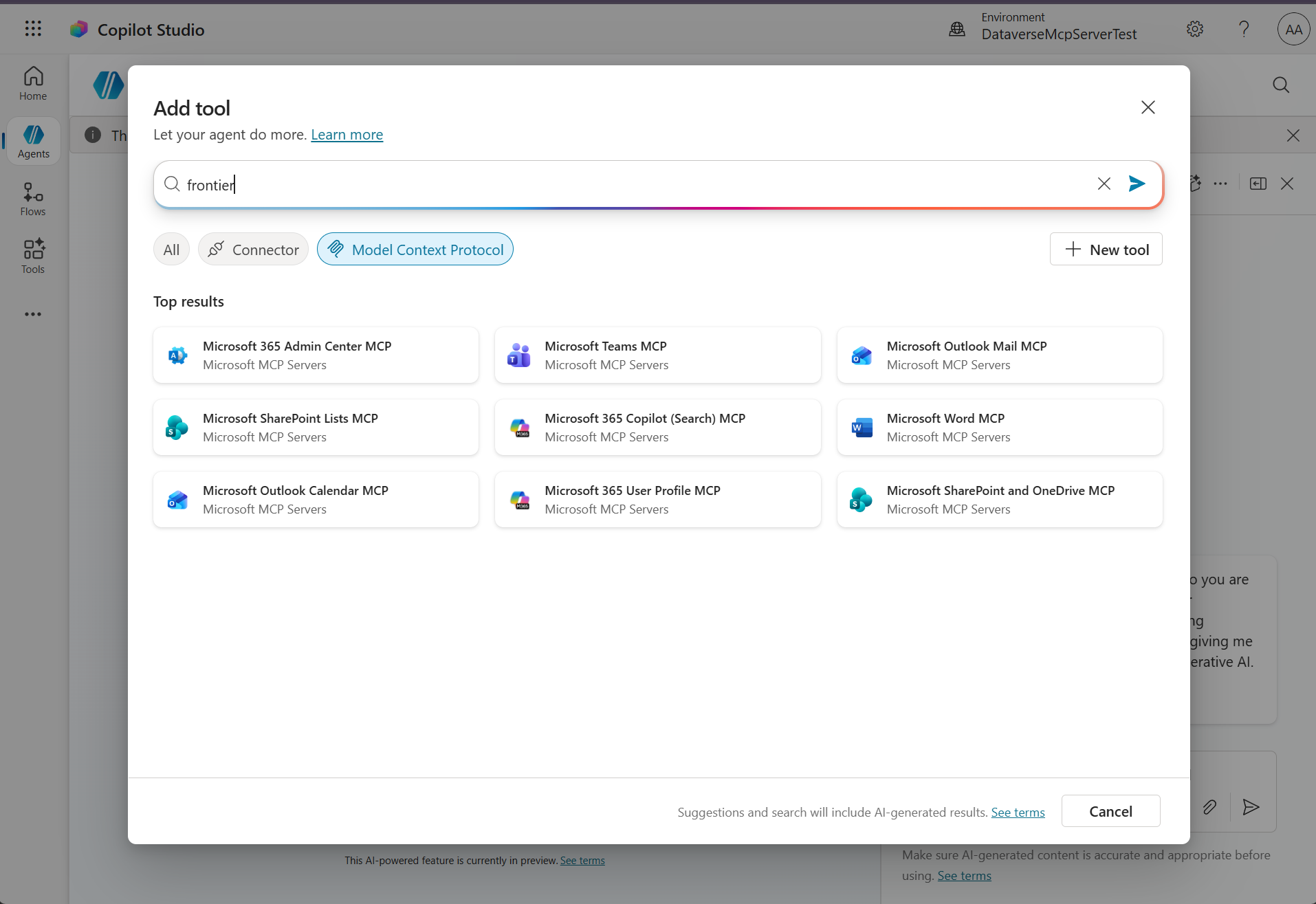
The Agent 365 tooling servers
Using these MCP Servers from Copilot Studio is cool and all, but what I really wanted to try was to utilize these servers from Microsoft’s flagship agent orchestration framework - the Microsoft Agent Framework. That begs the question - how can we access these MCP Servers from our own code?
In the Agent 365 documentation, it is described how the “MCP Management Server” can be accessed from Visual Studio Code. From the docs it is clear that this MCP Server can be accessed at the following URL:
https://agent365.svc.cloud.microsoft/mcp/environments/{environment ID}/servers/MCPManagement
The environemnt ID should be replaced with the organization ID of your Power Platform environment.
Let’s connect to this endpoint in MCP Inspector! In this tool it is possible to initiate a guided authentication flow that consists of a number of steps, where Metadata Discovery is the first one. Executing this first step gives us some interesting information about the MCP Server:
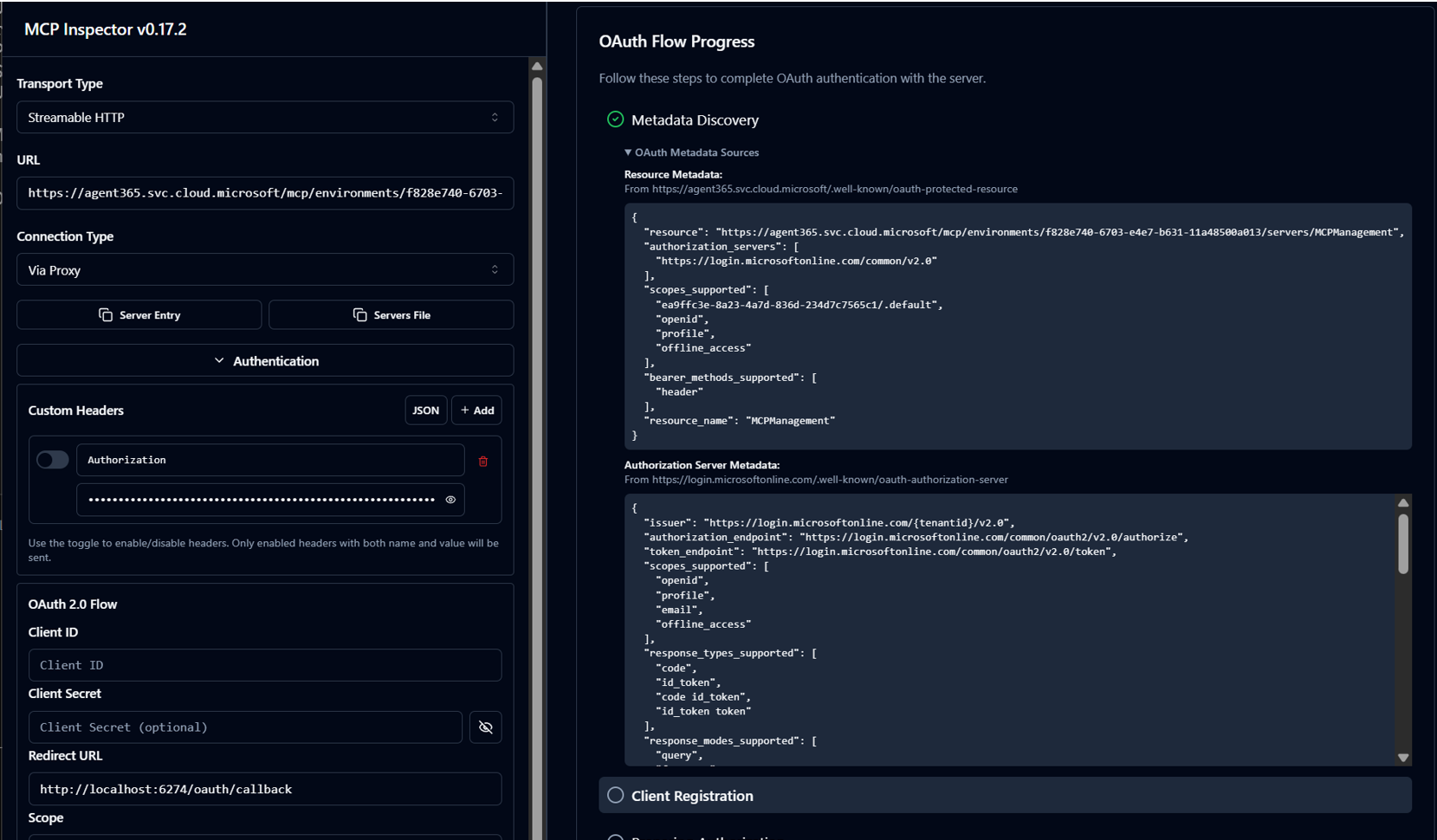
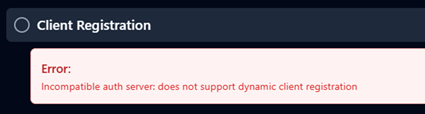
In the metadata we can see information such as the available scopes and the authentication- and token request endpoints. We can continue to run the authentication wizard, but it fails directly in the next step, since the MCP Server doesn’t support Dynamic Client Registration, which it SHOULD according to the MCP specification. MCP Inspector is pretty strict, and since the MCP Server is not 100% up to spec, we need to explore other options.
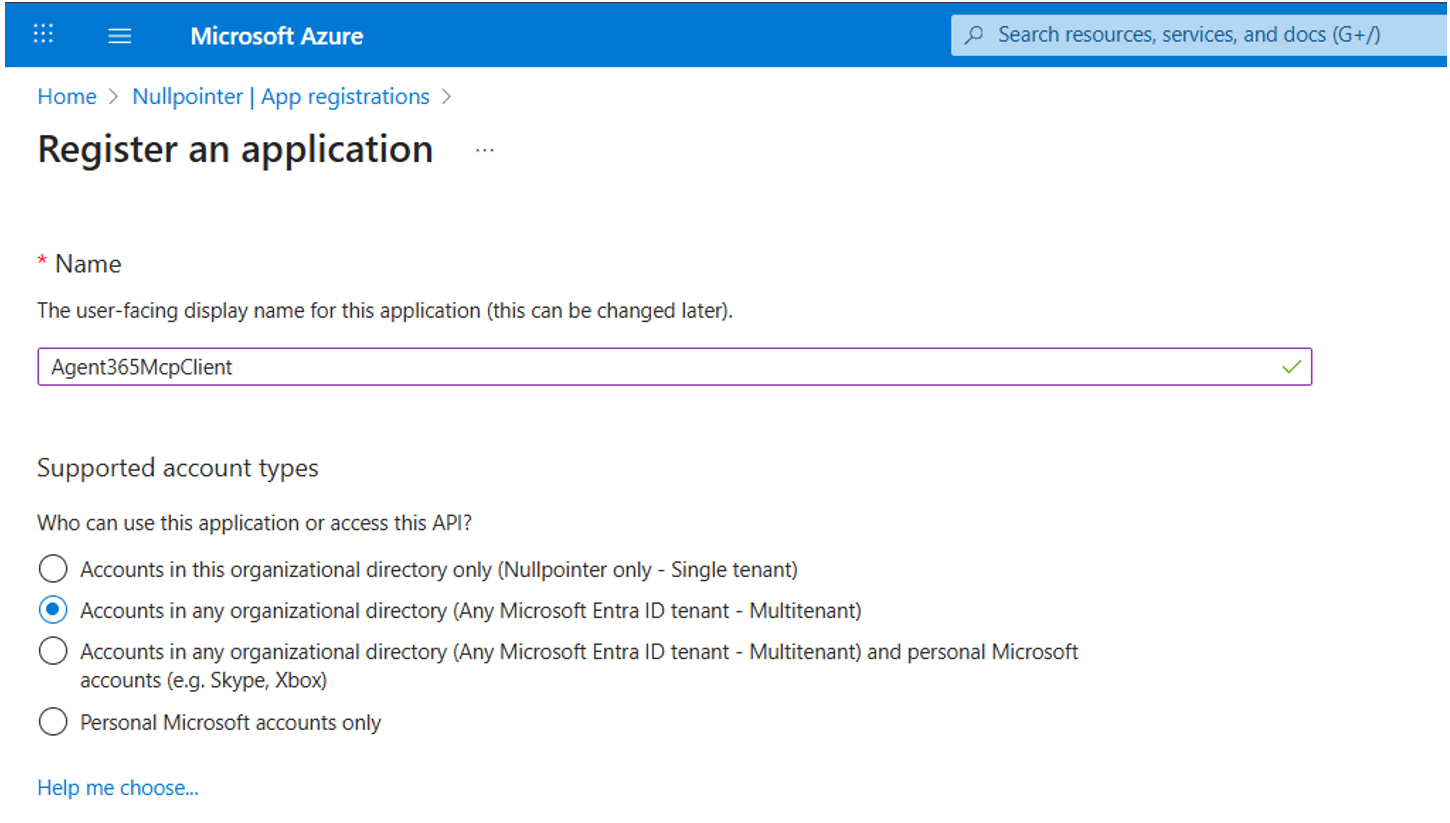
But, in order to authenticate against the MCP Servers using OAuth2, some setup is required. We start by creating an App Registration in Entra ID. Make sure to select the second option that allows accounts in other organizations to use the API. Create the app registration and make a note of the “Application (client) ID”, which we will use later.
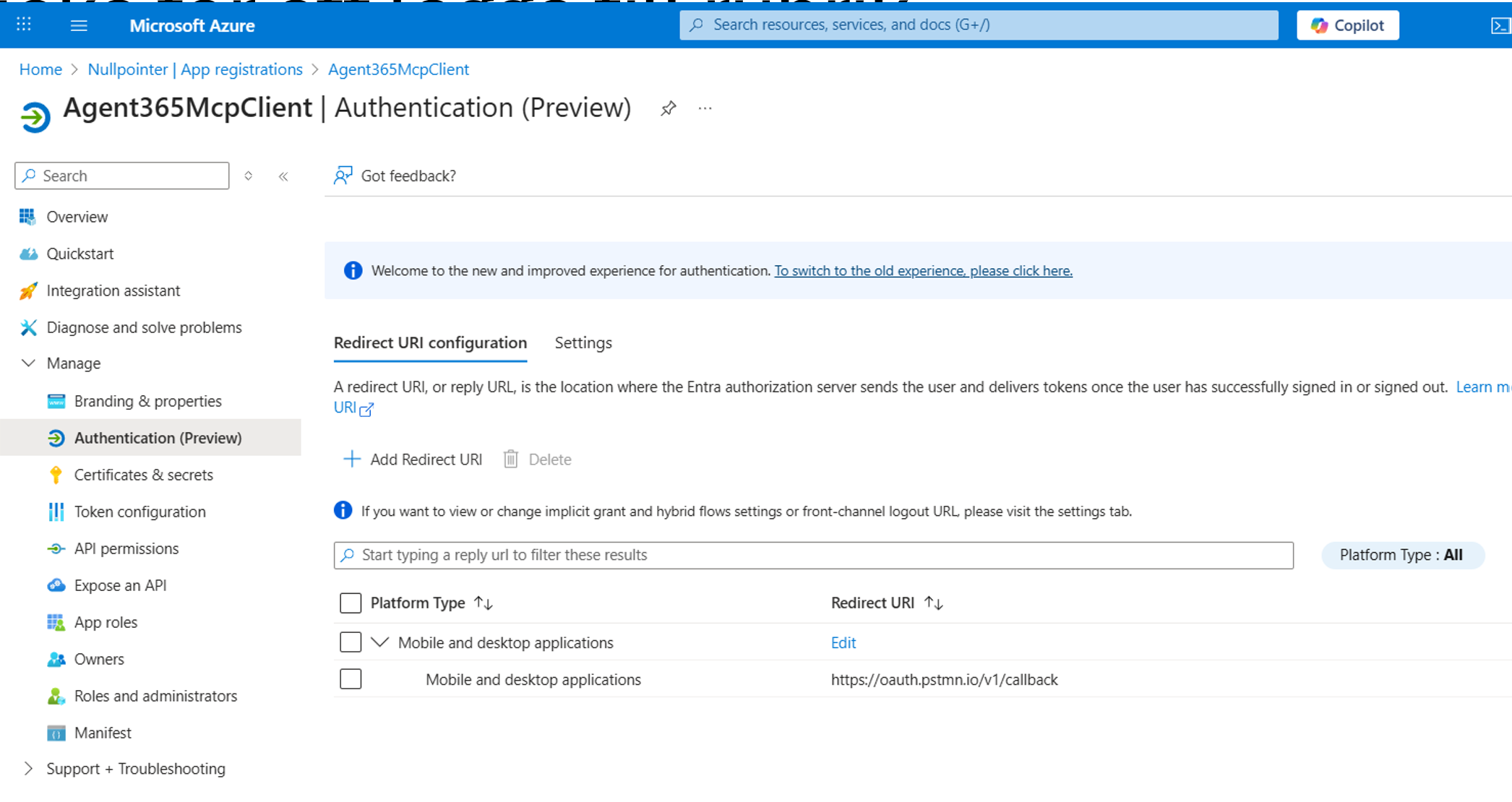
We are gonna be using Postman to execute the auth flow, so let’s add a Redirect URI that works with Postman. The platform type needs to be set to “Mobile and desktop applications”:
Then, we need to add some API permissions to our app registration. Go to the tab “APIs my organization uses” and find the Agent 365 API:s:

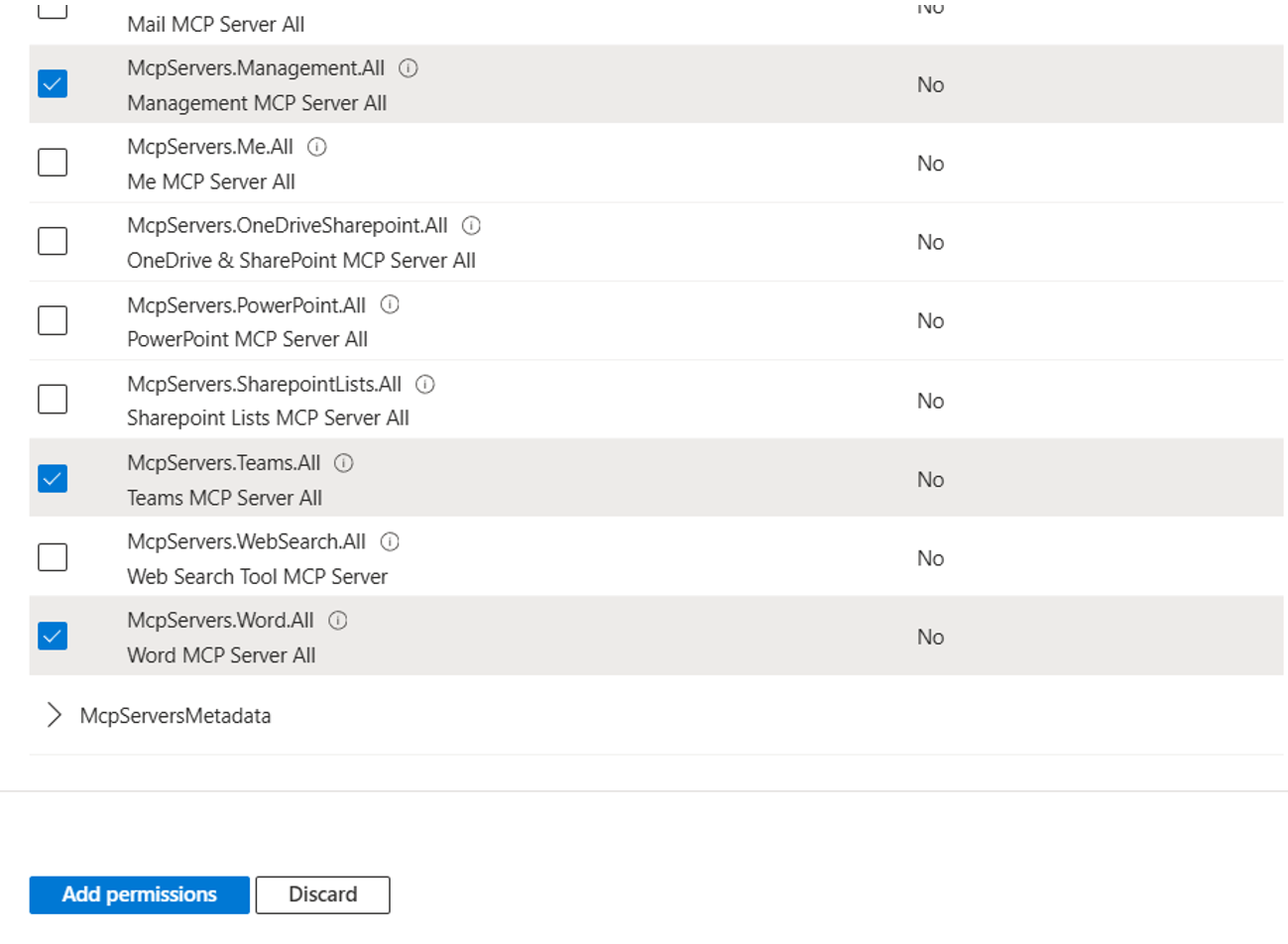
We can now select the permissions for the MCP Servers that we want to try. We’ll go for the Management, Word and Teams MCP Servers:
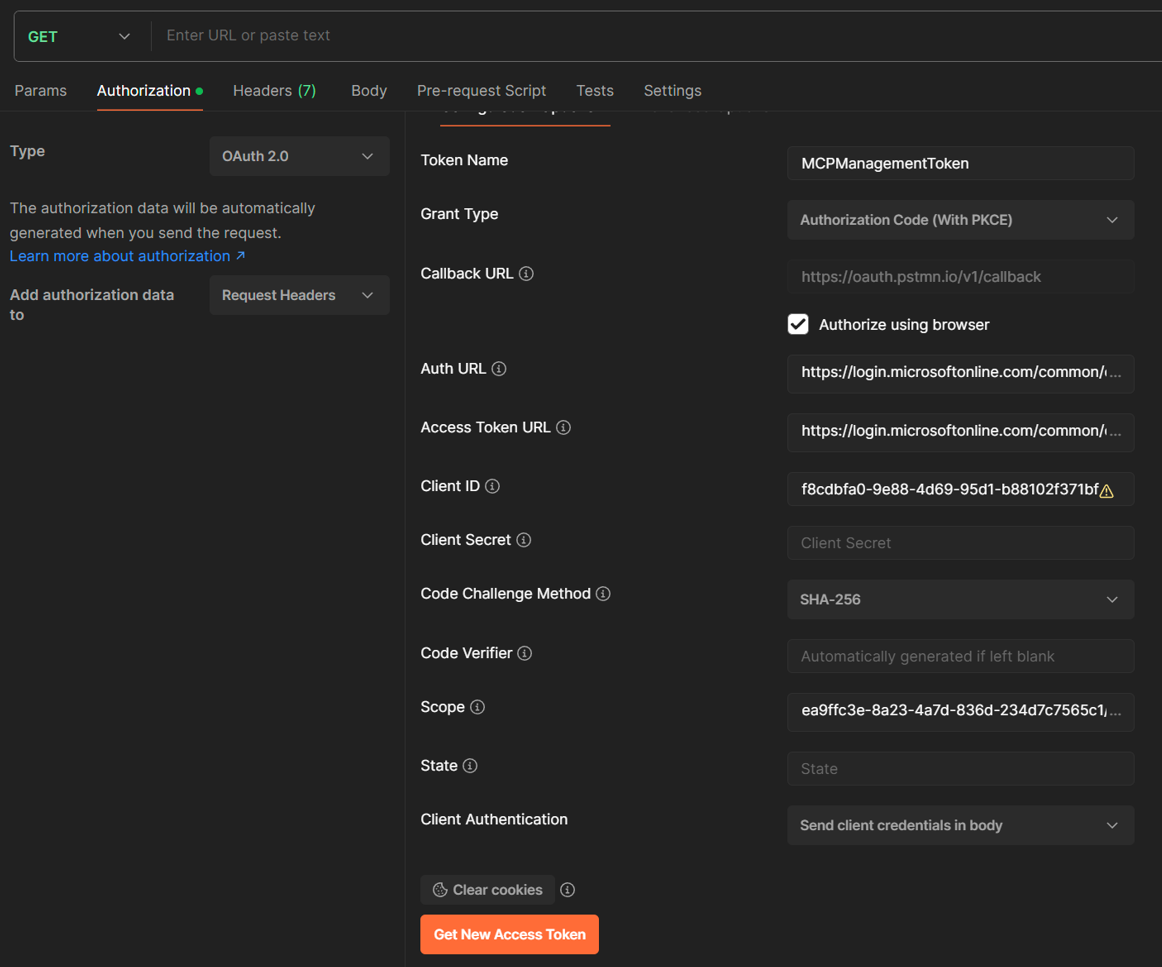
Now we can try to authenticate against the Management MCP Server, using Postman. Fill out the auth- and token endpoints according to what we got when we ran Metadata Discovery before. Set the scopes to ea9ffc3e-8a23-4a7d-836d-234d7c7565c1/McpServers.Management.All offline_access openid profile since we want to try out the Management MCP Server:
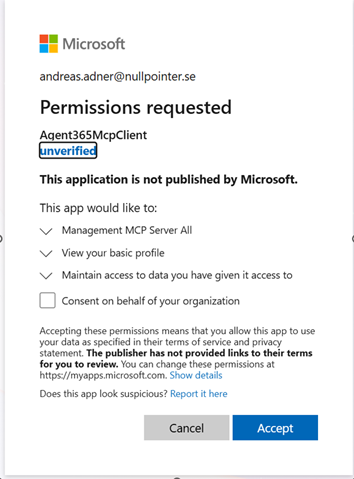
Click ‘Get new access token’ and you should be able to authenticate in a browser, and consent to the requested scopes:
Once this is done, you should get an access token that can be used to access the Management MCP Server!
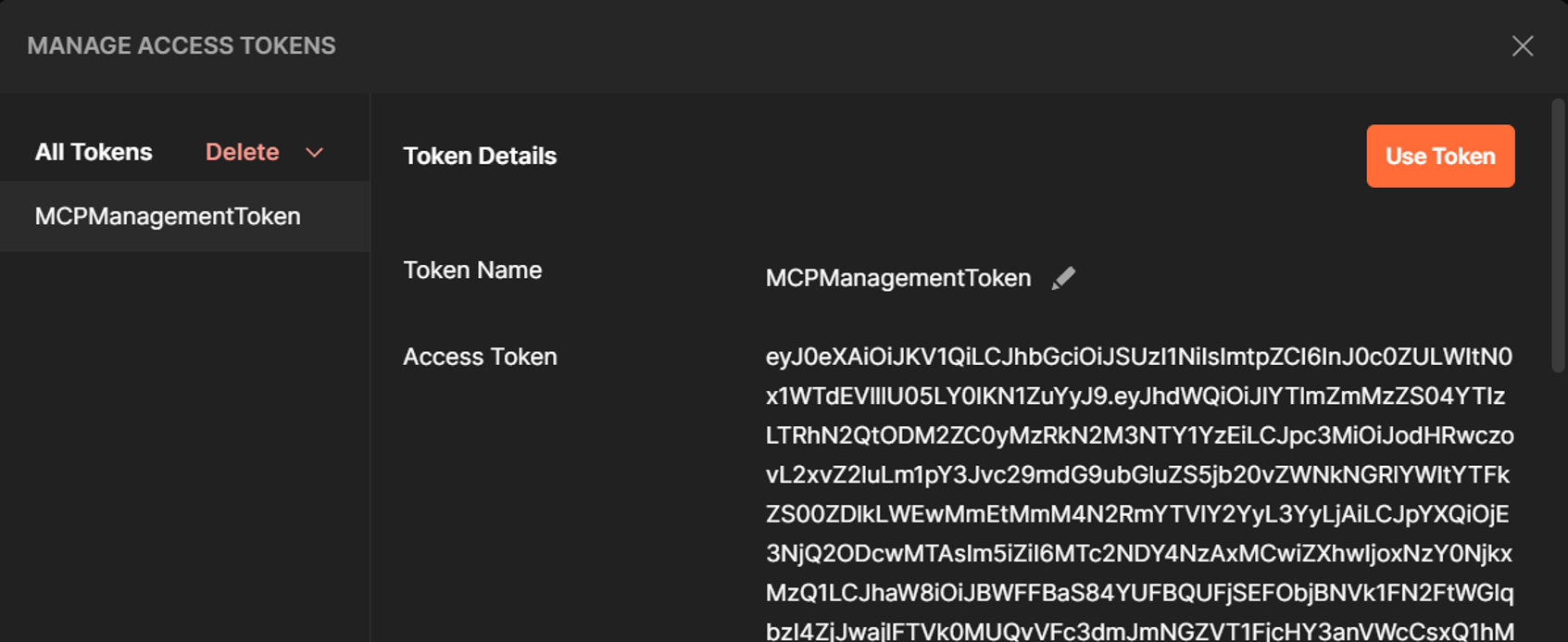
We can now go back to MCP Inspector, and enter the authentication token:
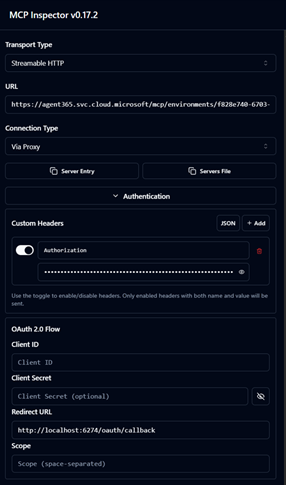
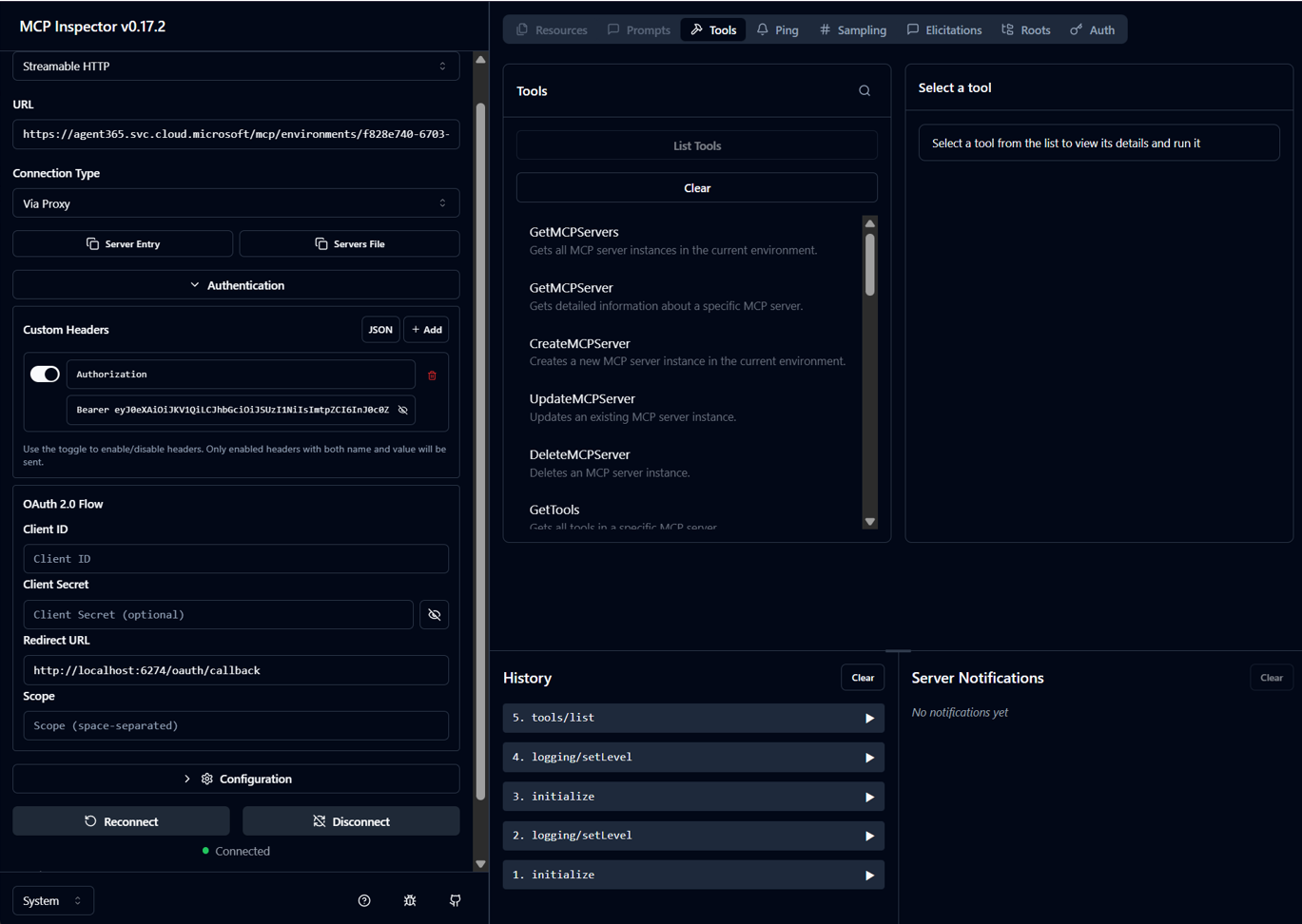
Don’t forget to add Bearer, before the token:

Click “Connect” and you should be able to access the Management MCP Server, and list its tools:
Now we can use the GetMcpServers tool to list all available tools and their details, such as endpoint addresses:
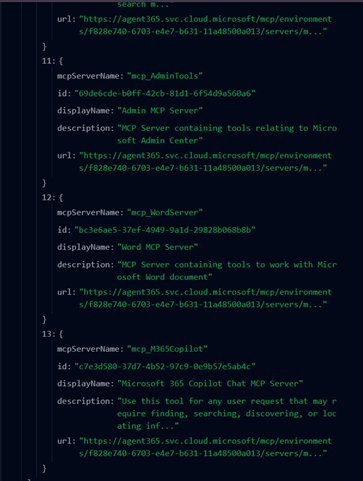
Great, now we have the address to the Word MCP Server. Let’s try it! Do the authentication dance in Postman again, but change the scope to the one for the Word MCP Server:

Get the token, connect and we can now access the Word MCP Server:

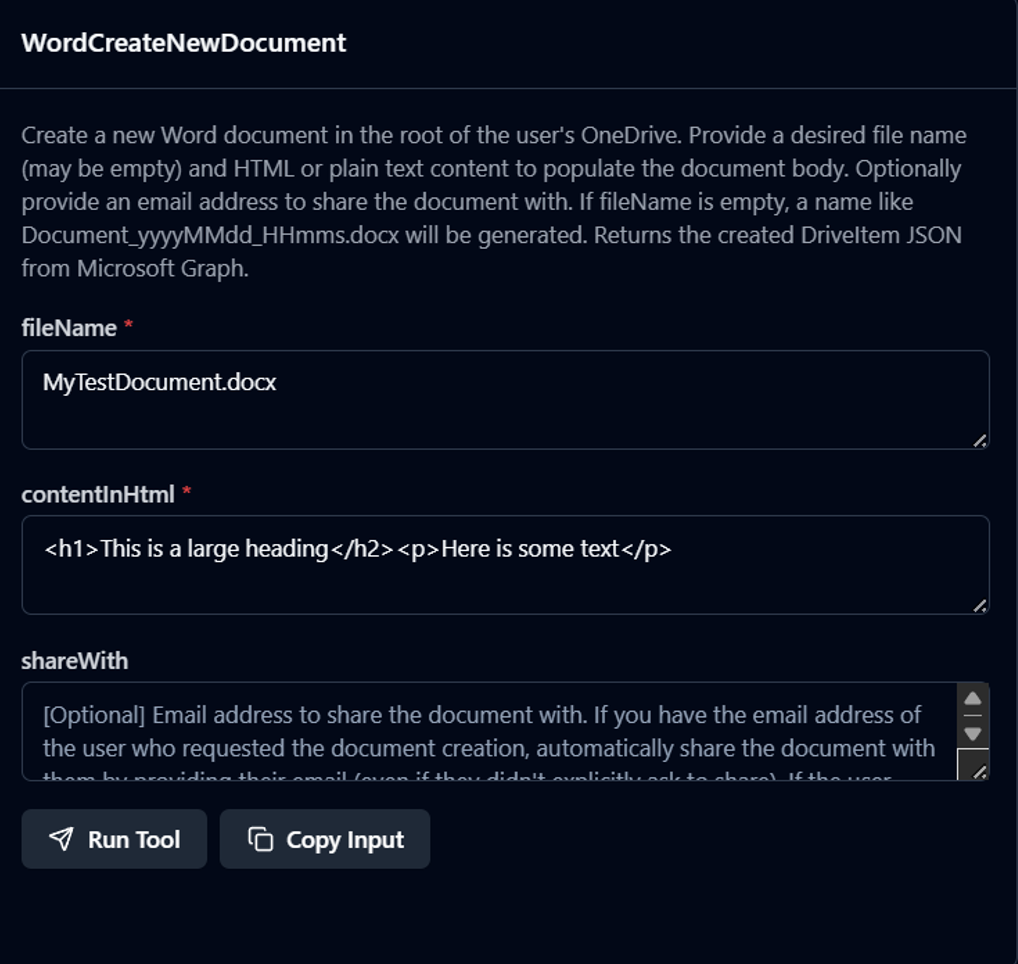
Let’s use it to create a Word document. We call the WordCreateNewDocument tool:
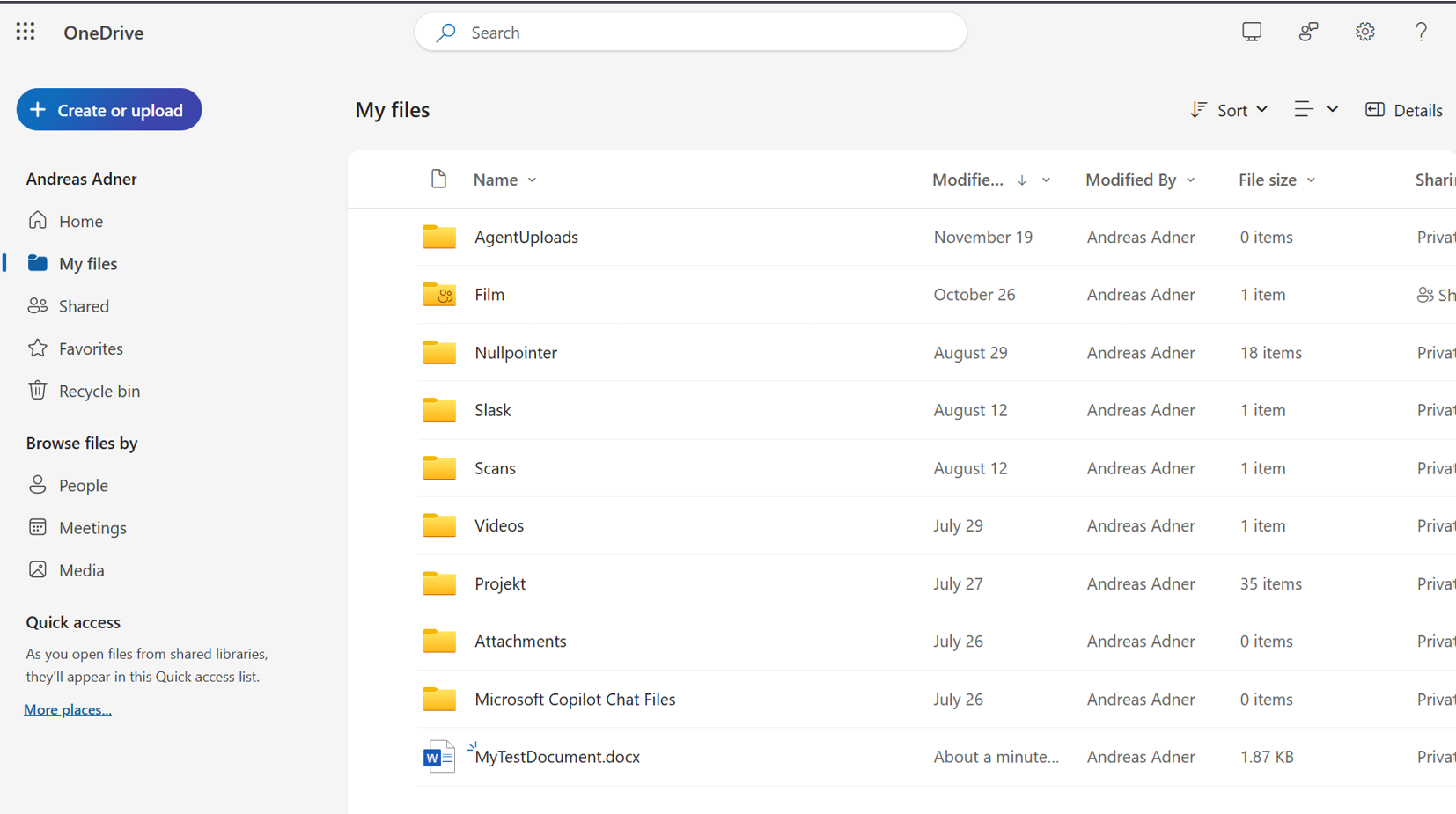
And lo and behold - a Word document has been created in our Onedrive!
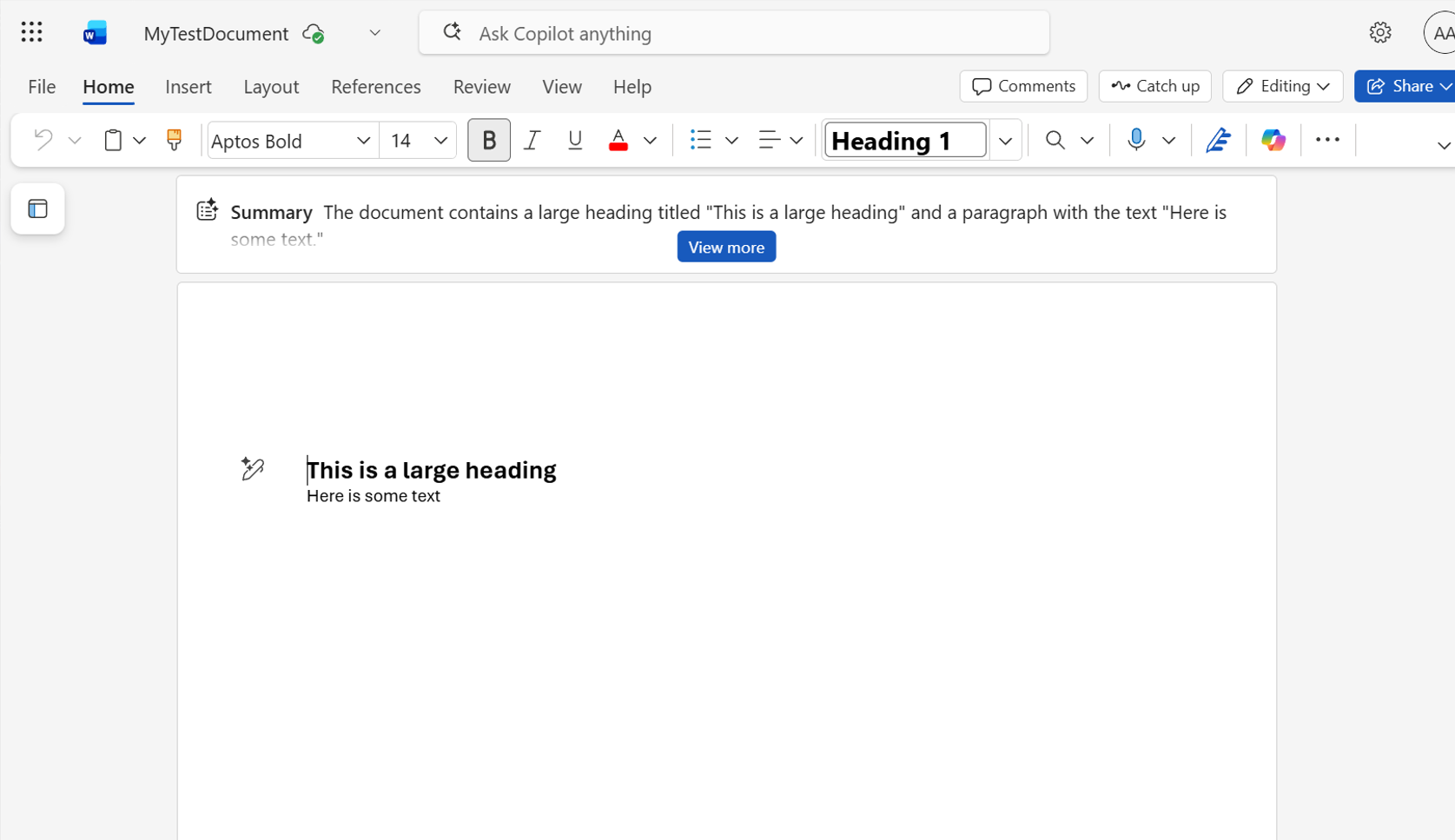
…with the text we supplied as a parameter:
Amazing, now we have what we need to (hopefully) be able to call these MCP Servers from an agent created in Microsoft Agent Framework! Stay tuned, in my next blog post I intend to show how this was accomplished - as demonstrated in this video.
Check out my next blog post, where I discuss how this agent is implemented.
Until next time, happy hacking!