Running Dataverse MCP Server in non-Microsoft clients

The Dataverse MCP Server has been around for about a year now, and I have blogged about it extensively during this time.
For example, last summer I did an evaluation of how well different LLMs performed using the Dataverse MCP Server. It seems like a lifetime ago - the state-of-the-art LLMs at that time were OpenAI o3 and DeepSeek-R1, and it turned out that GPT-4.1 was best at using the DV MCP, all things considered. It’s interesting to note that today, a lifetime and a gazillion model releases later, GPT-4.1 is still a popular model for production AI workloads - being very quick, pretty smart and reasonably priced.
I also blogged about using Dataverse MCP Server from Semantic Kernel, the agent orchestration framework available from Microsoft at that time. Since then, Microsoft has released Microsoft Agent Framework, a framework vastly superior to Semantic Kernel.
At that time the only way to use the Dataverse MCP Server was through a locally running STDIO proxy, which was tedious to set up and didn’t work properly with the C# Model Context Protocol SDK.
The STDIO proxy is still around, and according to the docs is still recommended for non-Microsoft MCP clients. From the docs:
But there is another way to connect to the Dataverse MCP Server, and that is through the use of the remote endpoint, which implements the Streamable HTTP transport.
This way of connecting to the Dataverse MCP Server is better in every way, and should always be used if your MCP Client supports it. And nowadays, most clients do. Unfortunately, the docs are not very helpful when they describe how to connect various non-Microsoft clients to the Dataverse MCP Server.
-
The docs say that the STDIO proxy should be used when connecting from Claude Desktop. This is not a good recommendation, since Claude Desktop supports the DV MCP Streamable HTTP endpoint just fine.
-
Same thing goes for Claude Code - the docs point to the local proxy, but Claude Code also works perfectly with the remote endpoint.
So, the docs aren’t up to date but will probably be soon. Until then, here’s a summary of what you need to do to set the Dataverse MCP Server for non-Microsoft clients like Claude Desktop and Claude Code.
Register an Entra ID app
This step is described here in the docs, but is a bit hand-wavy. The docs say that “the authentication flow used by the Entra app depends on the MCP client you’re using. Refer to your MCP client’s documentation for the supported authentication methods.”
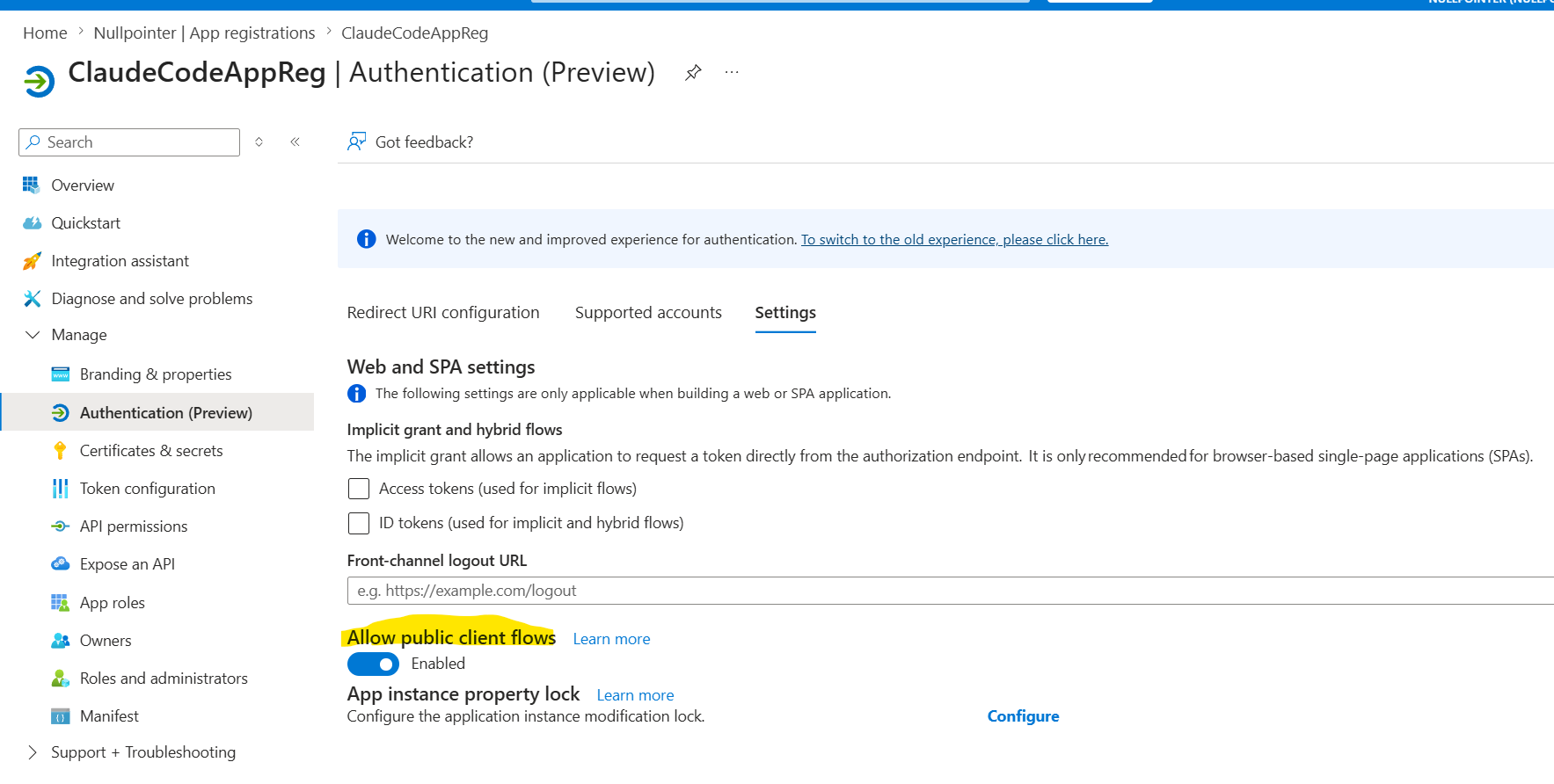
So let’s be clear - the best and simplest way is to set up your app registration to Allow public client flows, so that consuming MCP Clients can use the PKCE (Proof Key for Code Exchange, pronounced “pixy”) flow for authentication, something that is supported by Entra (that secures the Dataverse MCP Server) and most MCP Clients - like Claude Code, Claude Desktop, the Github Copilot App and the GitHub Copilot CLI.
So, let’s start by creating an app registration, as described here and add the required API permissions - the mcp.tools permission.
Make a note of the Application ID of the created app registration, and follow the instruction here to add this ID to the list of apps that are allowed to access the Dataverse MCP Server in your environment.
Then go to Manage -> Authentication (Preview) -> Settings and set “Allow public client flows” to Enabled.
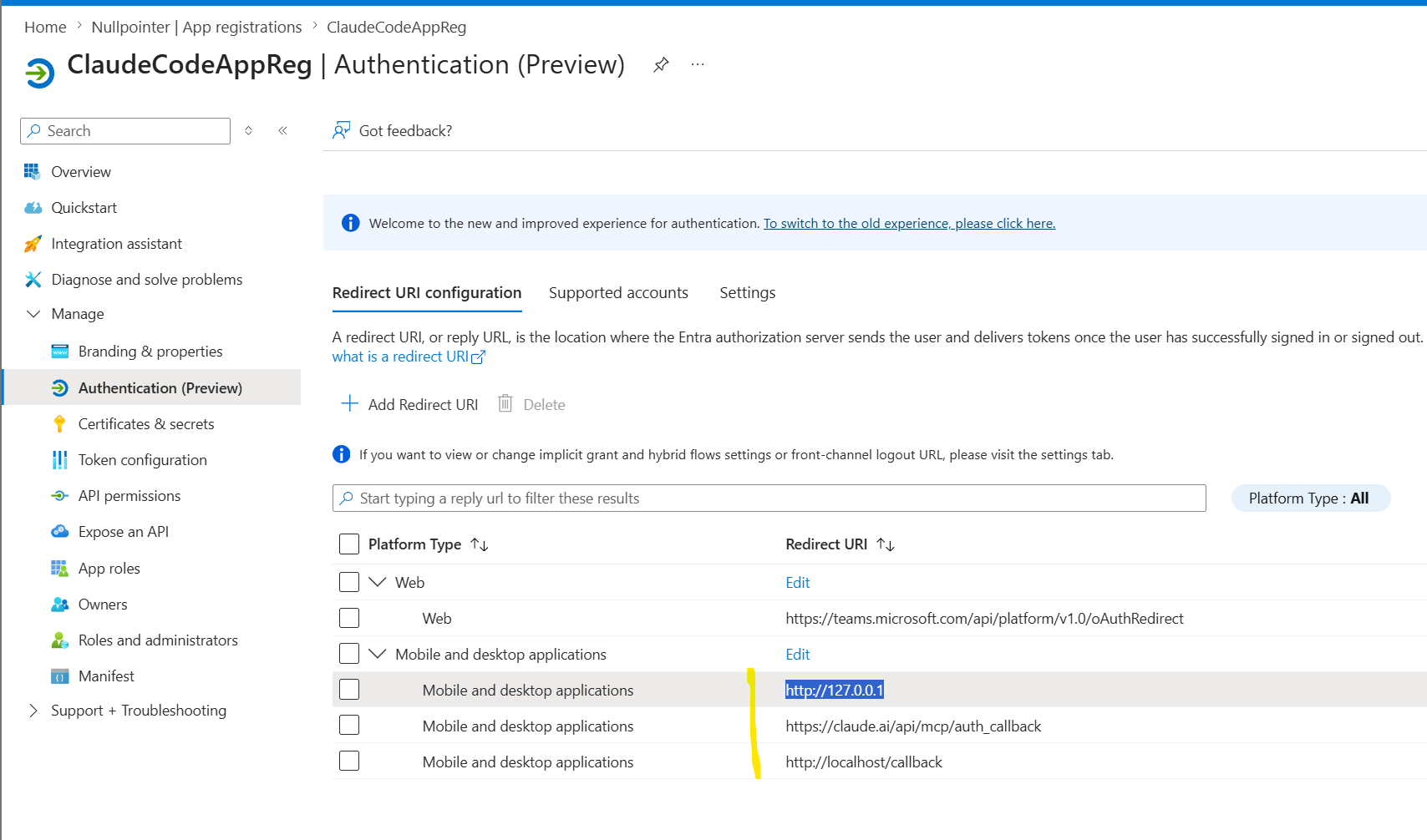
Then, let’s set up the OAuth2 redirect URLs required for the MCP Clients we intend to use:
- https://claude.ai/api/mcp/auth_callback for Claude Desktop
- http://localhost/callback for Claude Code
- http://127.0.0.1 for GitHub Copilot app/CLI
Connect to the Dataverse MCP Server
Let’s hook our various MCP Clients up to the Dataverse MCP Server. Our PKCE setup makes this a breeze.
Claude Desktop
Set up a new custom connector in Claude Desktop:
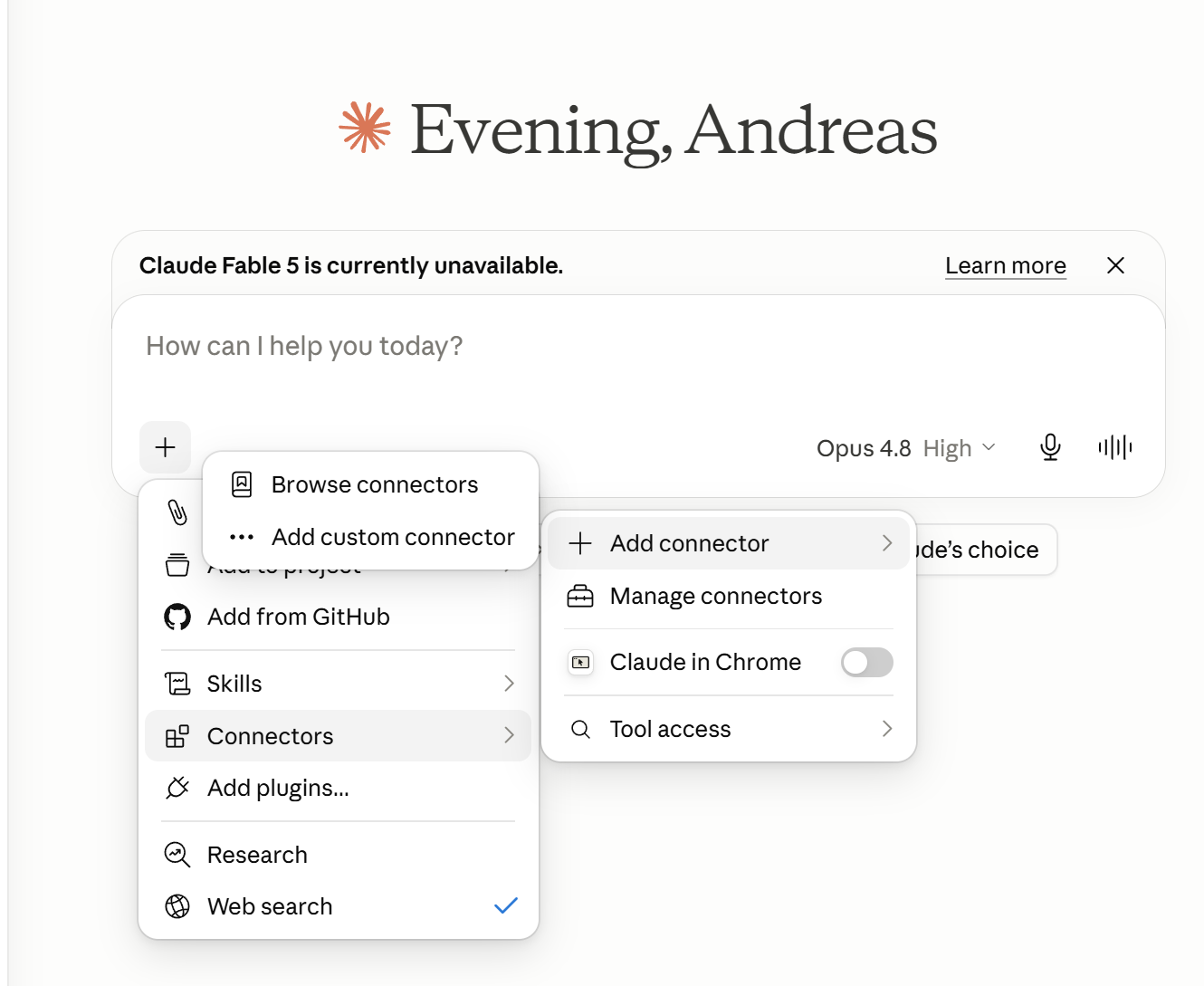
Add the name (can be anything) and the URL to your Dataverse environment’s MCP Server, and since we are using PKCE only the ID of the app registration is needed (no secret):
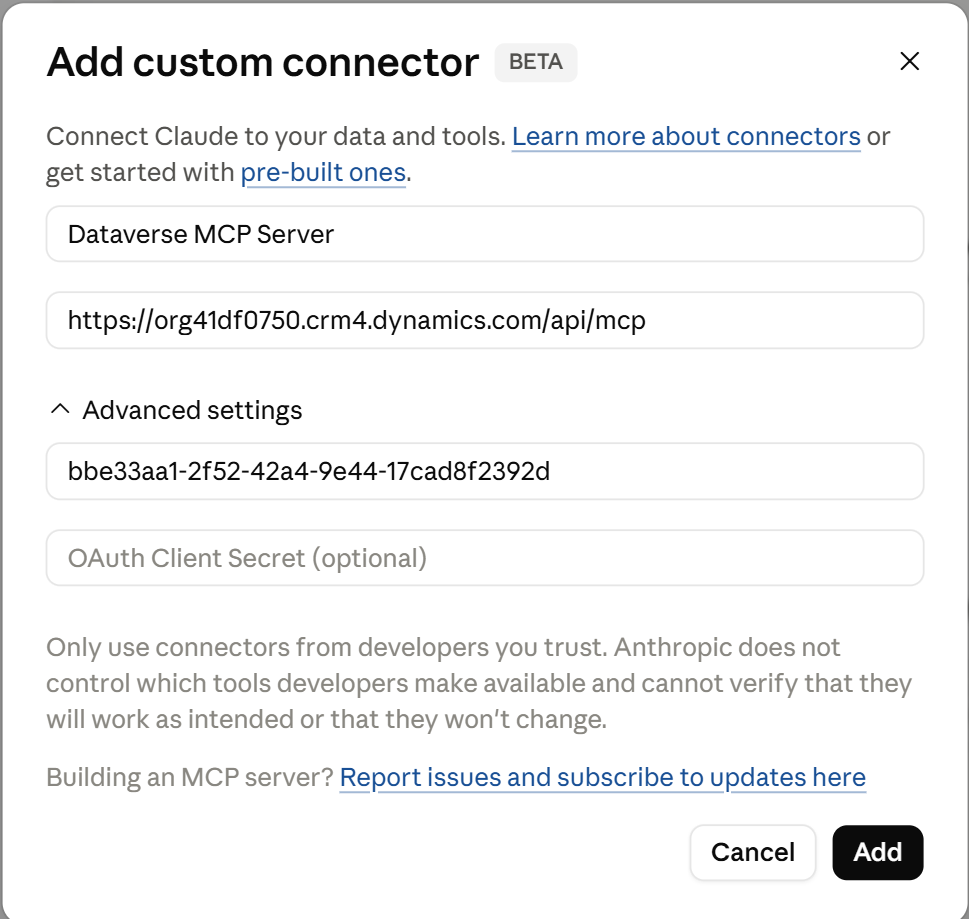
After adding the custom connector, the authentication flow will be run automatically - so that’s all that is needed to hook up Claude Desktop to the Dataverse MCP Server.
Claude Code
Run this command to add the remote Dataverse MCP Server, with your app registration ID set to the client id, to Claude Code:
claude mcp add --transport http --client-id bbe33aa1-2f52-42a4-9e44-17cad8f2392d DvMCPServer https://org41df0750.crm4.dynamics.com/api/mcp
Launch Claude Code, and then run /mcp to set up authentication for your newly added MCP Server:

You will get a link that you can paste in your browser to authenticate:

After authentication in your browser is complete, you can use the Dataverse MCP Server from Claude Code:

GitHub Copilot/CLI
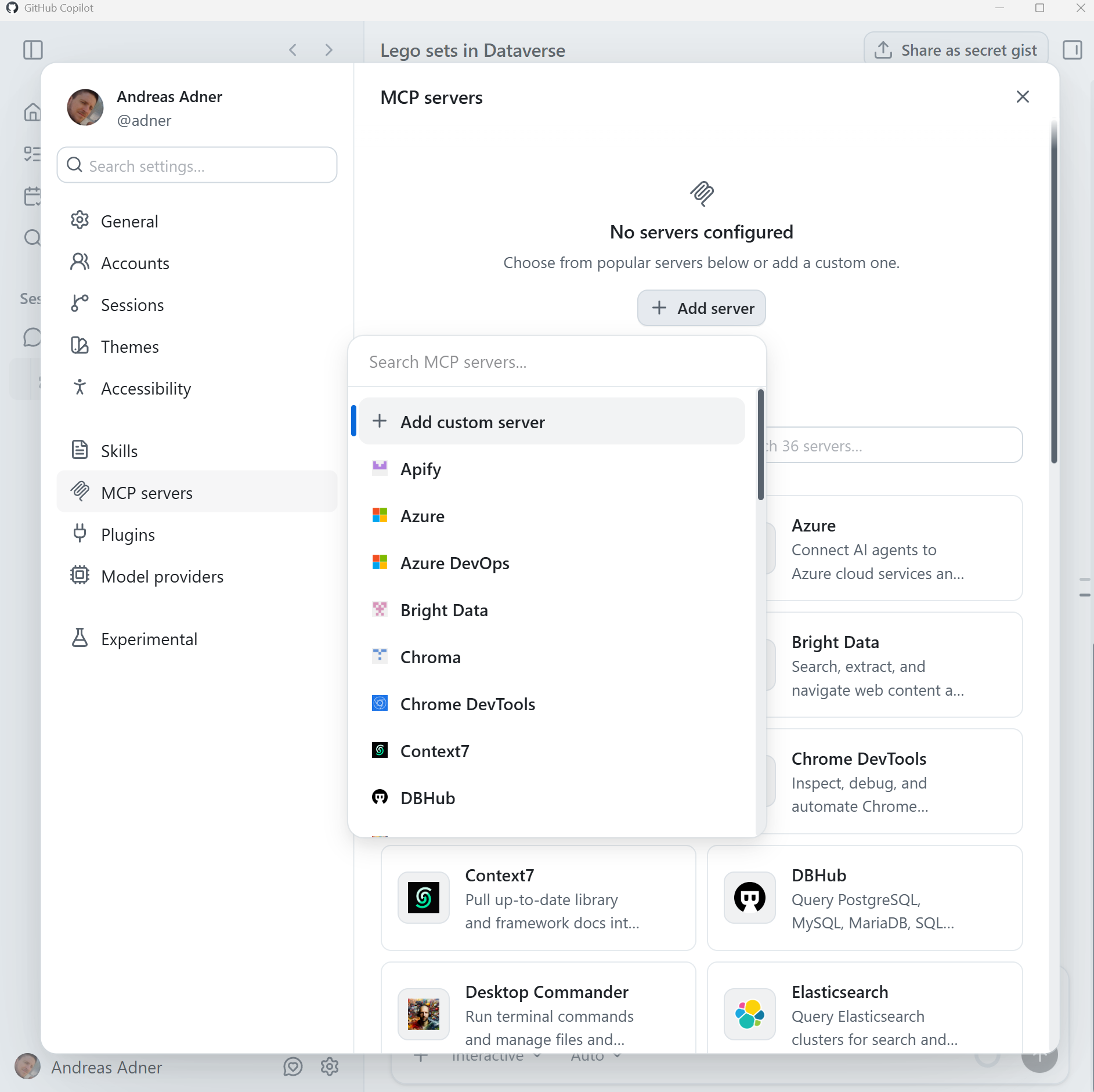
In the GitHub Copilot app, click Settings -> MCP Servers -> Add Server -> Add Custom Server:
Select HTTP, enter the MCP URL and the app ID:
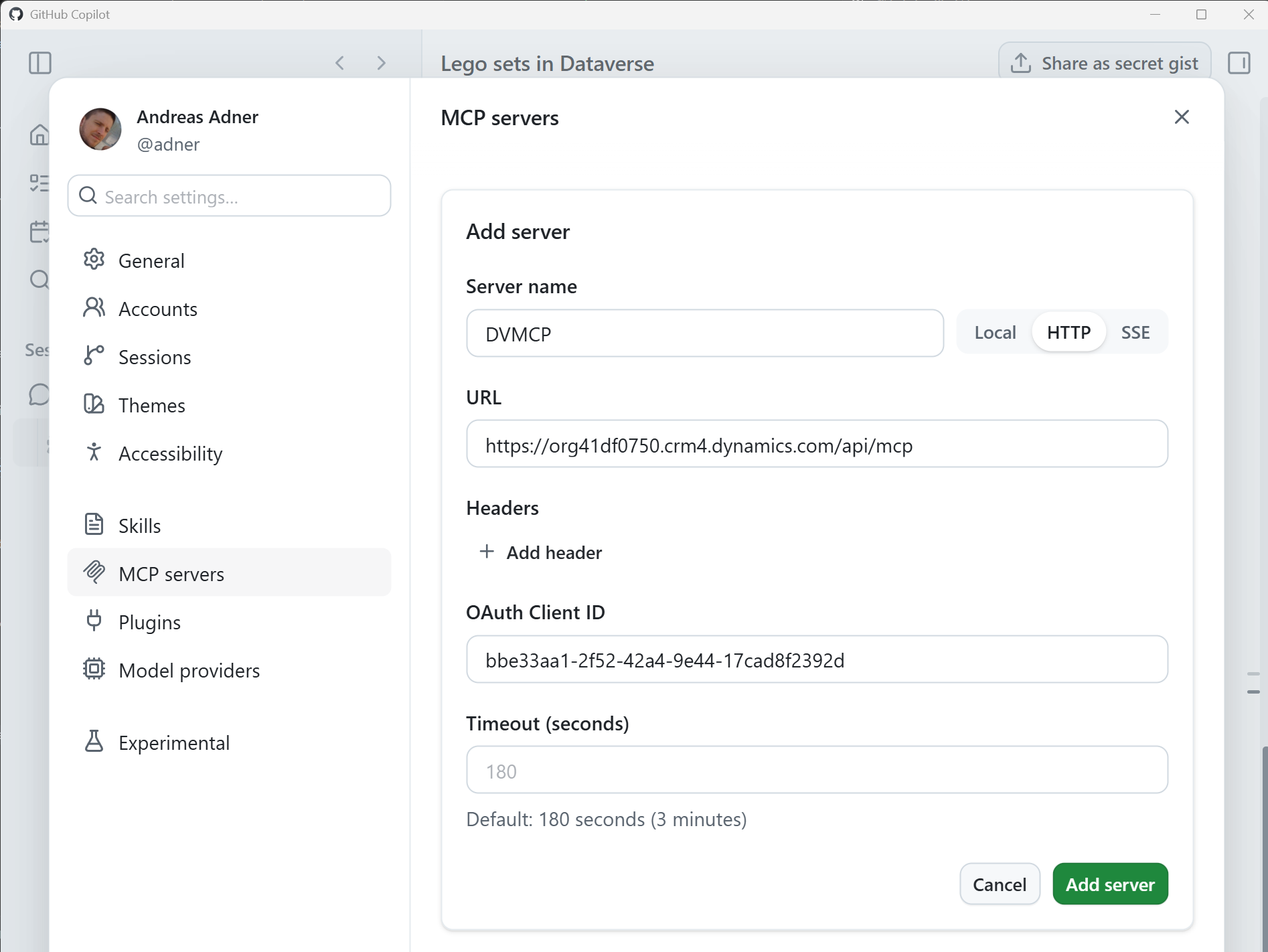
When the server is added, click “Sign in”:

All done, you can now use the server!

So, these are the steps to use the Dataverse MCP Server from various MCP Clients, using the OAuth2 PKCE authentication flow. We sure have come a long way since last summer!
The video below shows the Dataverse MCP Server being used from Claude Desktop, Claude Code, the GitHub Copilot app and CLI. Have fun, and until next time - happy hacking!