Creating dynamic MCP Servers using Agent 365
A while back I posted a video to LinkedIn that showed how to use the Microsoft 365 MCP Management MCP Server (yes, that is the name of the server) that is part of Agent 365 to dynamically create MCP Servers. In this blog post my intention is to show how this was accomplished.
My interest in this topic started when I read through the Agent 365 documentation, and found a section that described the tooling servers that is part of Agent 365. These servers are described as “…enterprise-grade Model Context Protocol (MCP) servers that give agents safe, governed access to business systems such as Microsoft Outlook, Microsoft Teams, Microsoft SharePoint and OneDrive, Microsoft Dataverse, and more through the tooling gateway”.
These are the same MCP Servers that you can use from Copilot Studio, which I tried out after it was announced at Microsoft Ignite this year. In a post on LinkedIn and in a couple of blog posts (part 1 and part 2) I explored how these MCP Servers could be used from a custom agent, using the Microsoft Agent Framework as orchestrator.
These experiments involved using the Agent 365 MCP Management MCP Server to programmatically retrieve information about these first-party MCP Servers, so I could connect to them using the MCP plumbing in Agent Framework.
While exploring the (pretty sparse, to be honest) documentation on the A365 MCP Management MCP Server, it is clear that this server has quite a lot of interesting tools, for example:
- CreateMcpServer - “Creates a new MCP server instance in the current environment”.
- CreateToolWithCustomAPI - “Creates a new tool with a custom API in an MCP server”.
These tools sure sound interesting, but there isn’t any real information on how to use them in the documentation, as far as I can see. The section “Build scenario-focused custom MCP servers with the Microsoft MCP Management Server” contains a high-level overview of the capabilities for creating custom MCP Servers, including the ability to create MCP Servers based on:
- Existing connectors
- Dataverse custom APIs
- Microsoft Graph APIs
There is excellent documentation available on how to hook up the Management MCP Server from VS Code, so let’s try that and explore some of the available tools in the MCP Server.
The documentation is missing one detail - how to enable it so that the GitHub Copilot MCP Client is allowed to communicate with Dataverse. Luckily, this instruction can be found here in the Dataverse MCP Server docs.
Creating the custom MCP Server
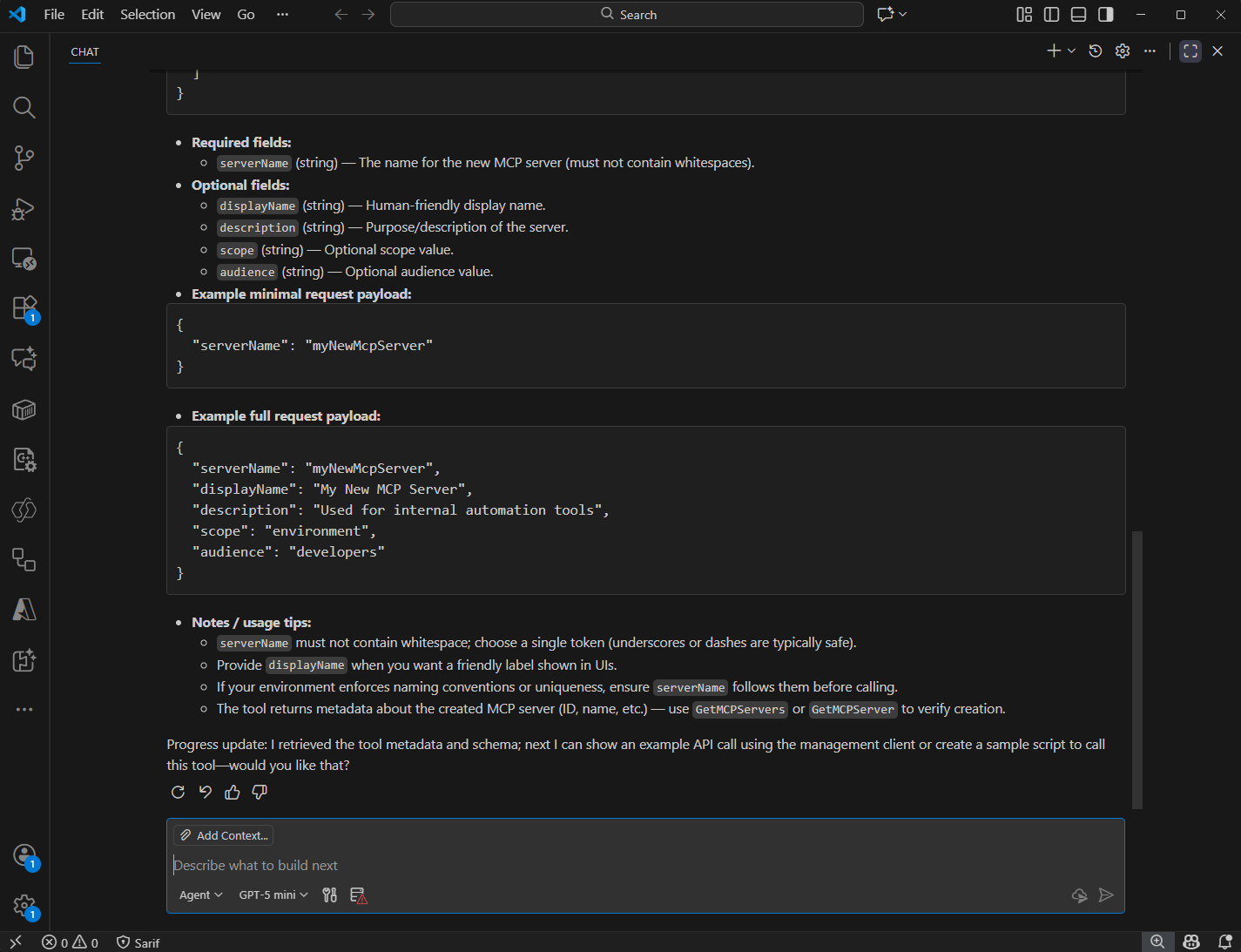
In VS Code, we connect to the Management MCP server for one of our Dataverse environments, and ask it to provide detailed information about the CreateMcpServer tool:
So, let’s try to use this tool to create a new MCP Server with the name “AddesCoolMcpServer”.
When doing so, we get a somewhat cryptic error message - Export key attribute name for component MCPServer must start with a valid customization prefix..
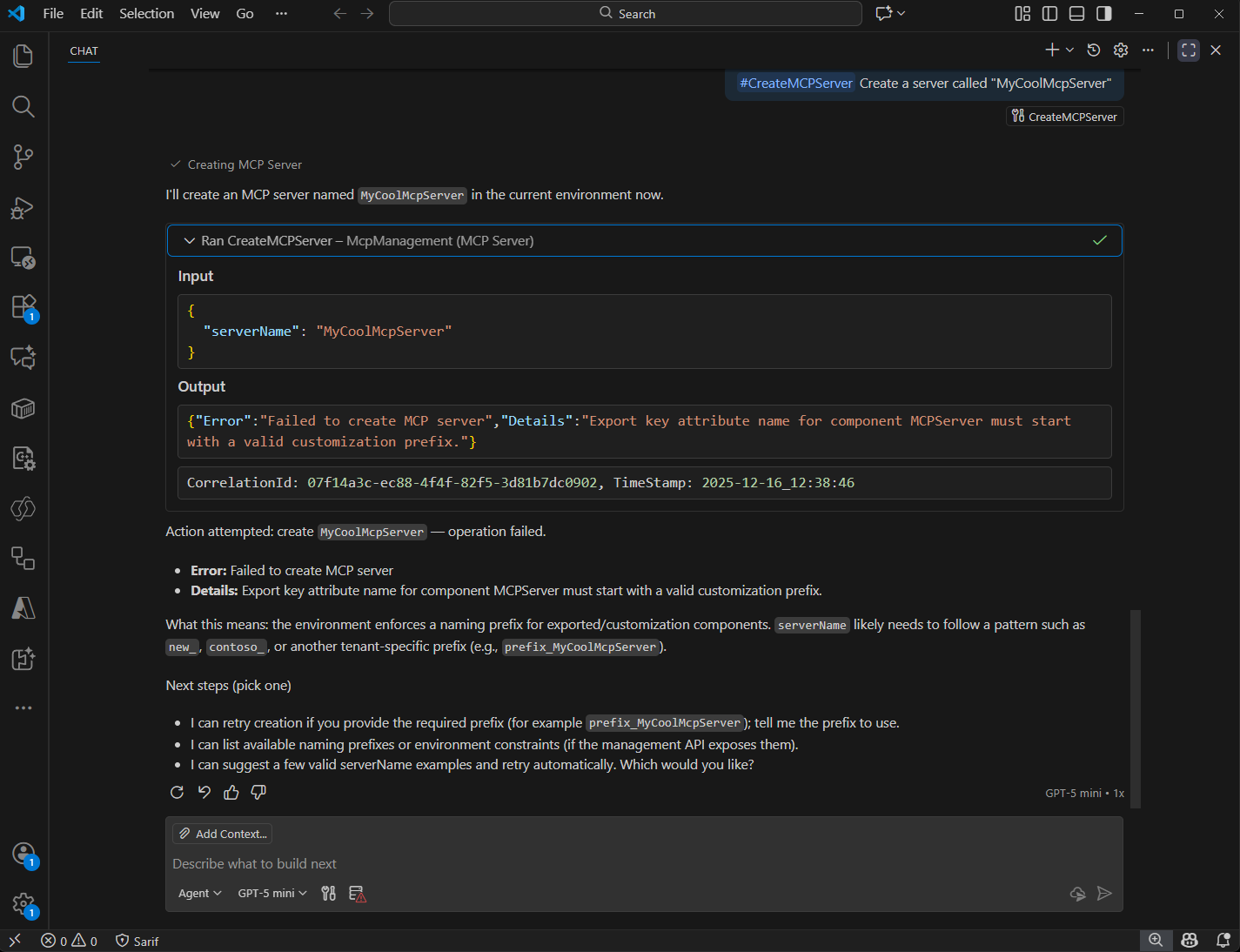
Interesting… Could it be that the prefix of the logical name of the MCP Server must be associated with an existing Publisher? Let’s try to use the prefix of an existing publisher in this particular Dataverse environment - adde_. Excellent, this worked:
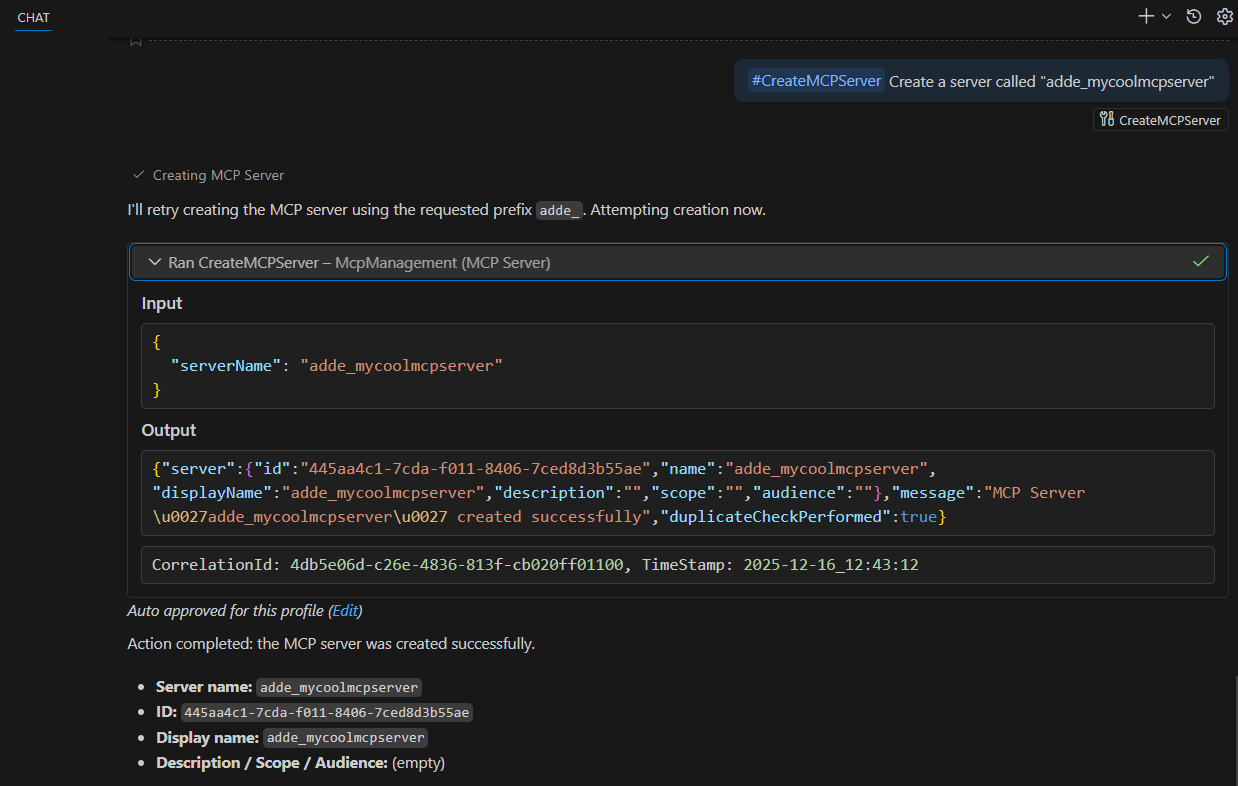
Looking in Dataverse, we can see that a new record has been created in the MCPServer table:
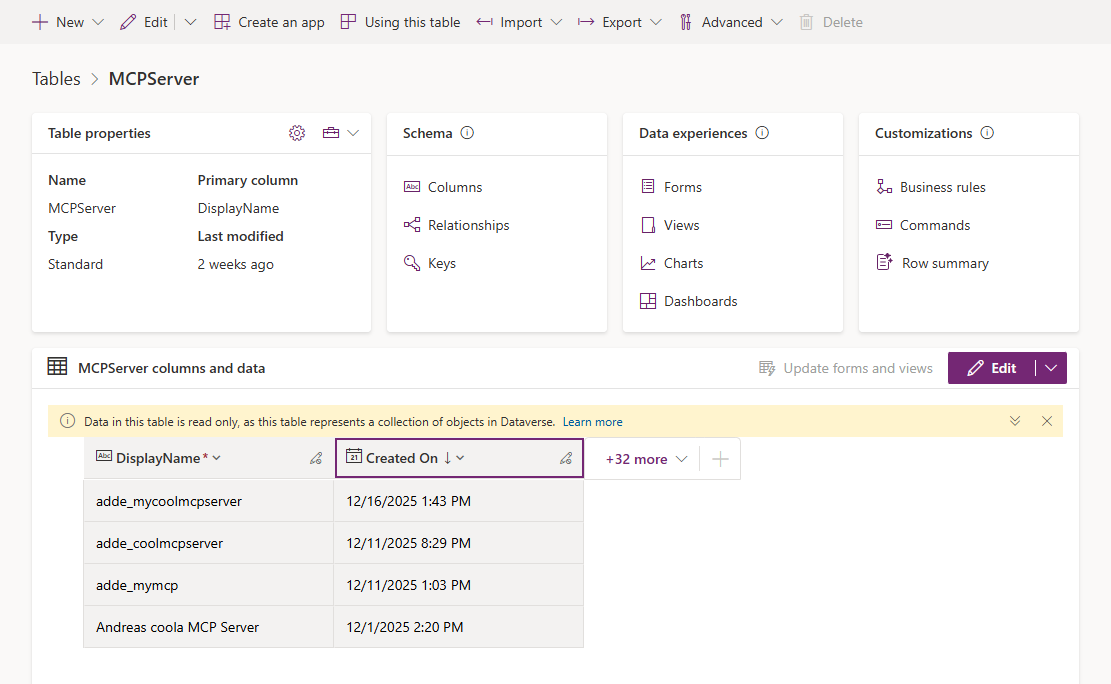
So far, so good. So, how can we add tools to this MCP Server? There was a tool in the Management MCP Server called CreateToolWithCustomAPI which we can probably use to add some Custom APIs as tools to the server. But which Custom APIs are available? We can call the GetCustomAPIs tool to retrieve the list of Custom APIs that are available in the Dataverse environment:
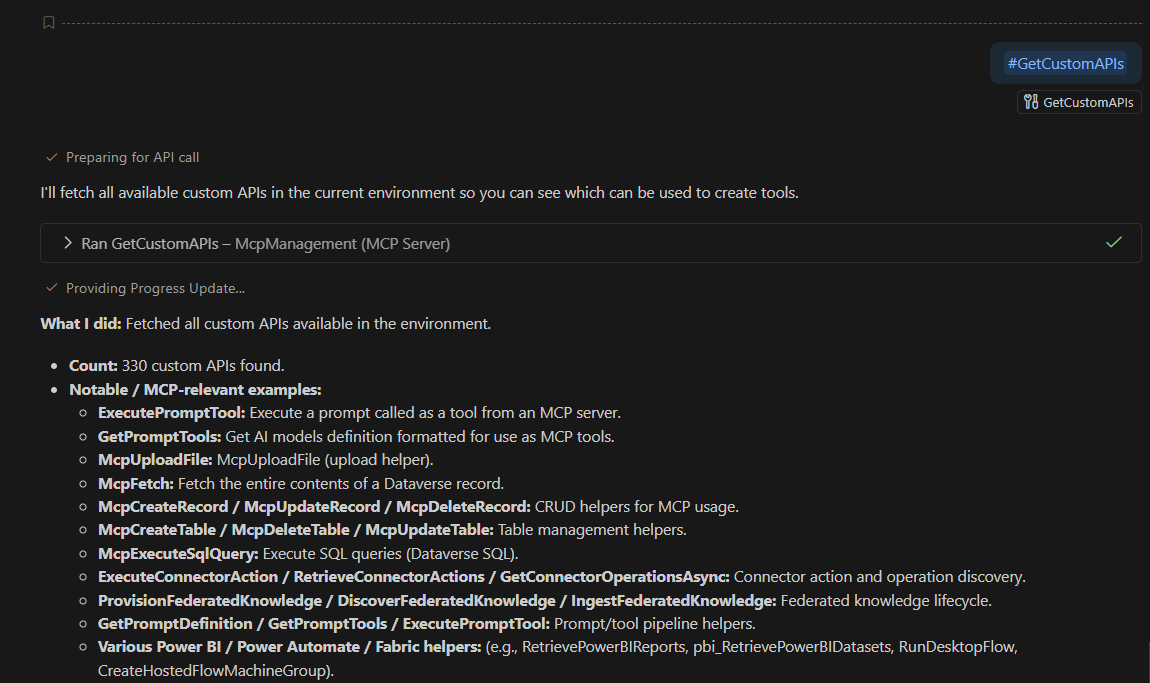
Quite a lot of tools - 330 to be exact! Let’s try to add the FetchXmlToSql tool to the MCP Server we just created:
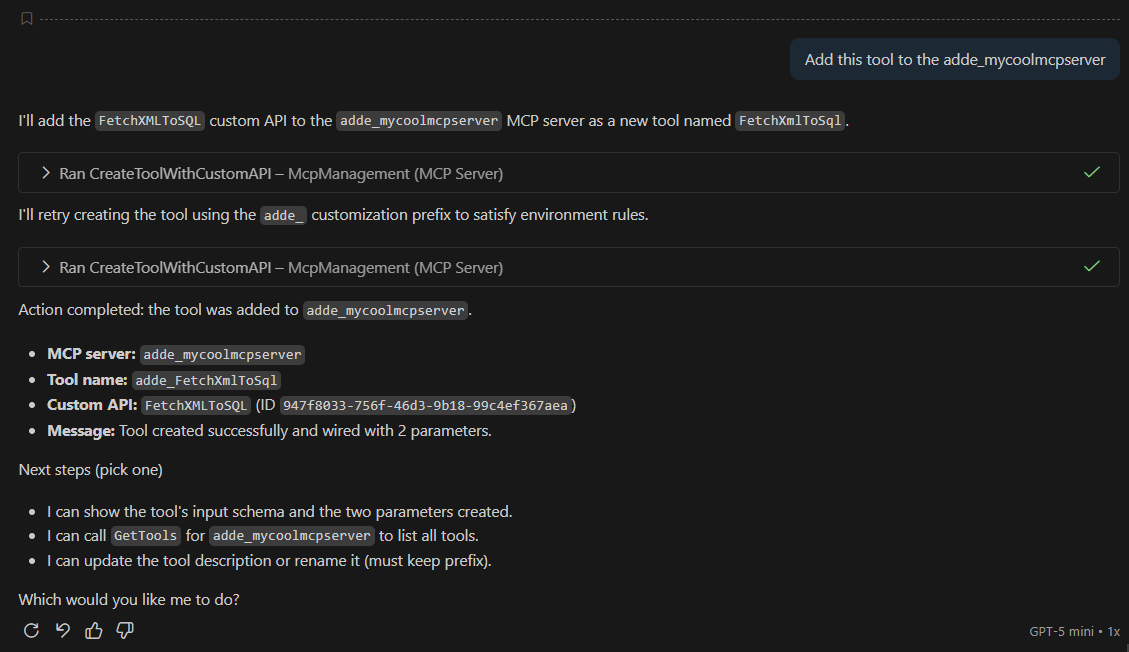
We can see in Dataverse that the tool has been added to the MCPTool table:
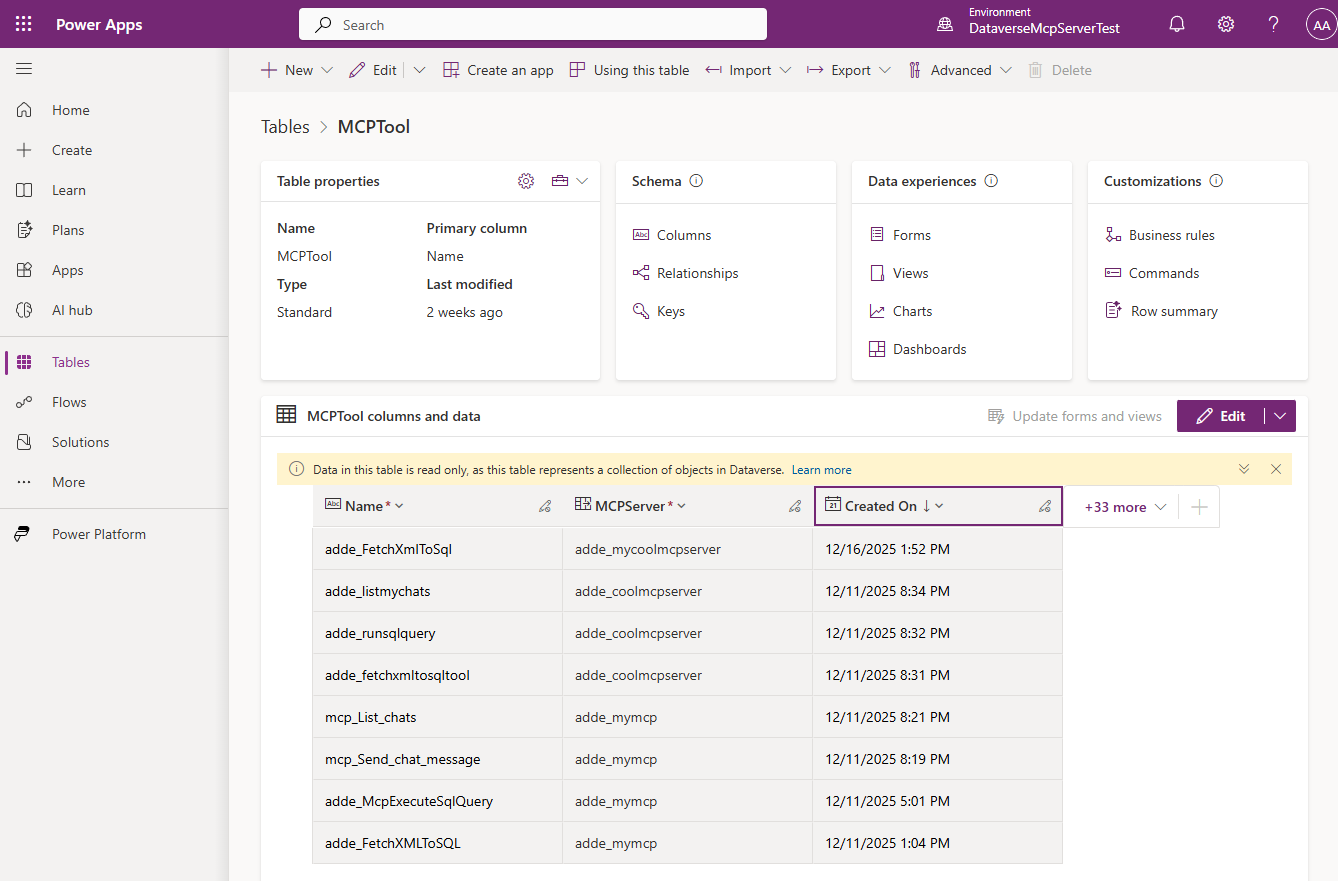
Great, now we have a custom MCP Server with a tool! Let’s get some info about this MCP Server:
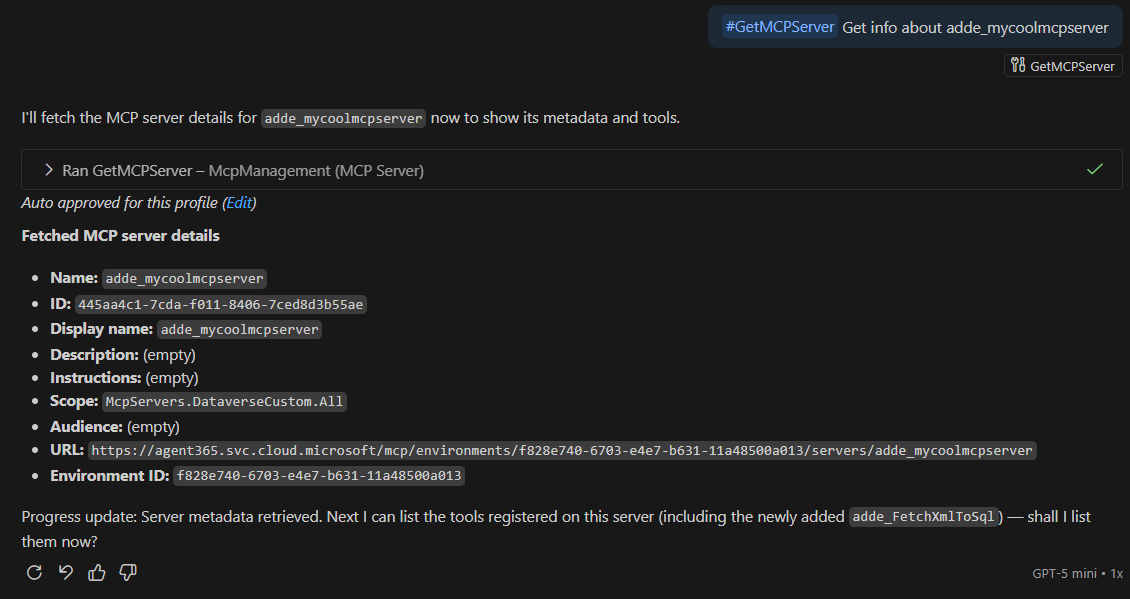
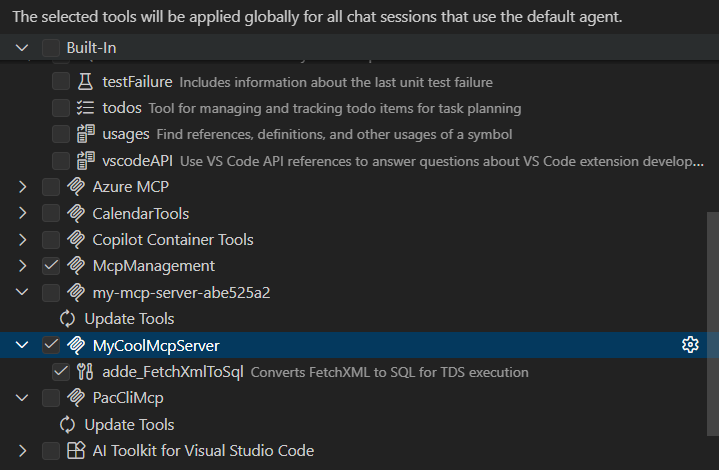
Now that we know the URL of the newly created MCP Server we can easily add it to VS Code:
Now let’s try to convert a FetchXml query to SQL using our server:
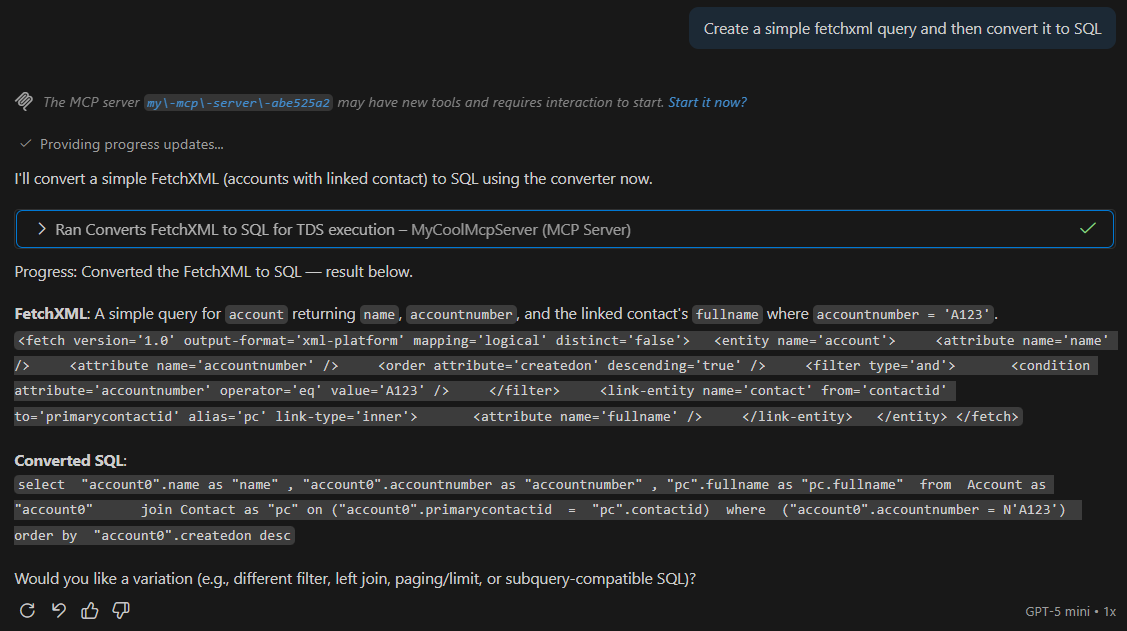
Works perfectly! Let’s also add the McpExecuteSqlQuery Custom API as a tool to our server, similar to above:

We now have two tools, let’s try them together:
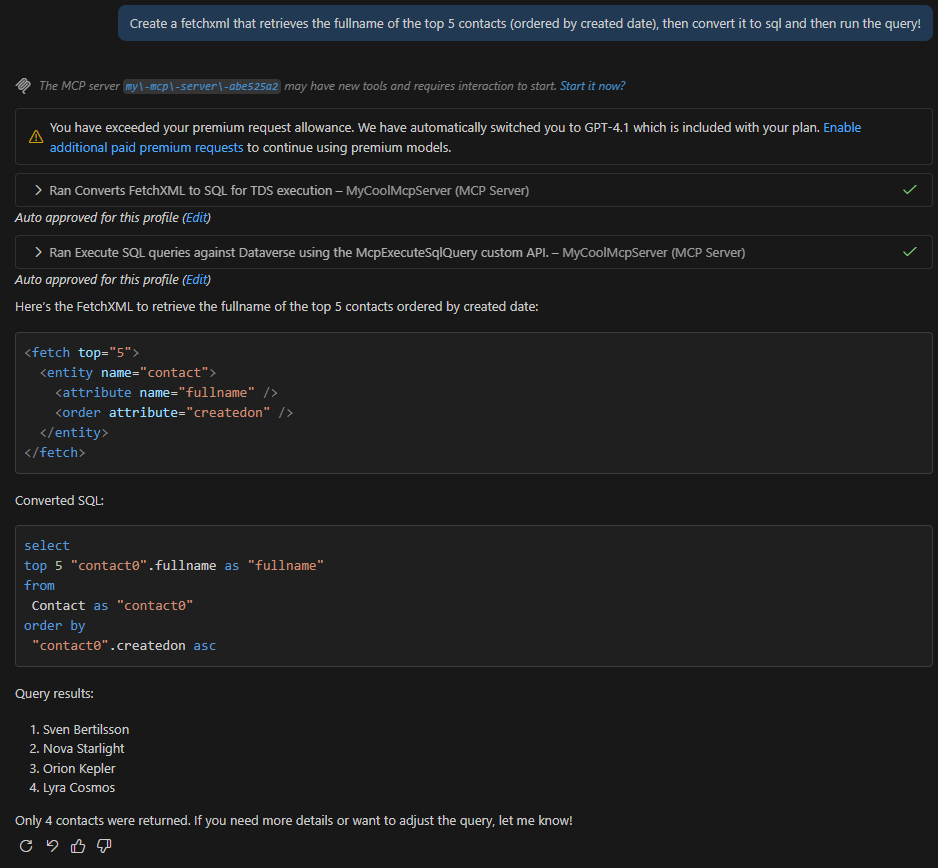
That worked perfectly! But how do we call our custom MCP Server from Copilot Studio? Let’s start by configuring an App Registration in Entra ID:
- Create an App Registration and make note of the Application ID. Note - make sure that the Application Registration is Multitenant.
- Create a secret and make note of it.
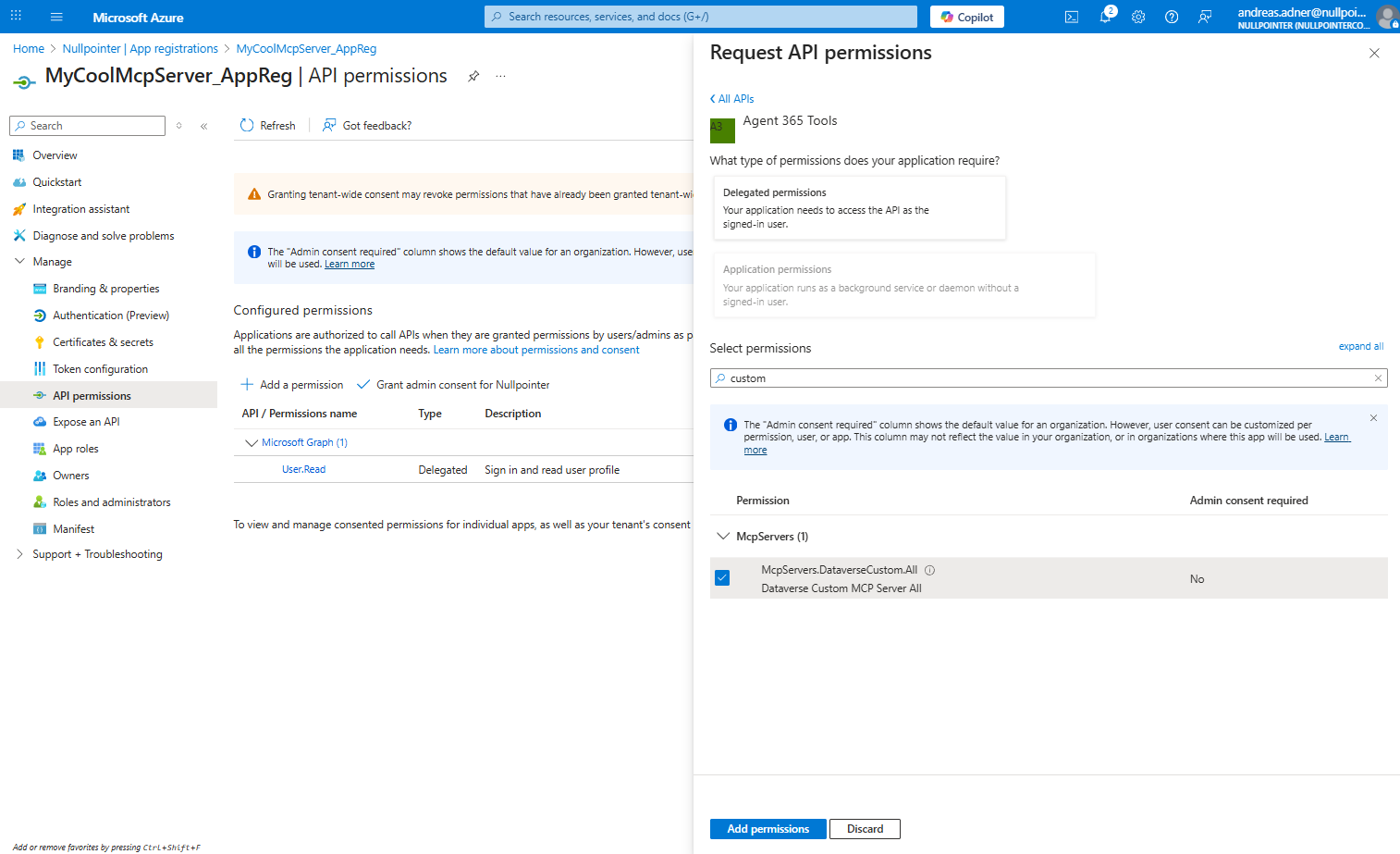
- Add the
McpServers.DataverseCustom.Allscope (since it is required by the tools, see the screenshot above) and consent to it. This scope can be found by adding an API Permission, clicking “APIs that my organization uses” and then search for “Agent 365”:
Using the MCP Server in Copilot Studio
Now we can create a new agent in Copilot Studio and add our MCP server as a tool. Add a new tool of type “Model Context Protocol”, enter the HTTP streaming endpoint (as can be seen from the screenshot with the tool info above) and configure it to use manual OAuth2:
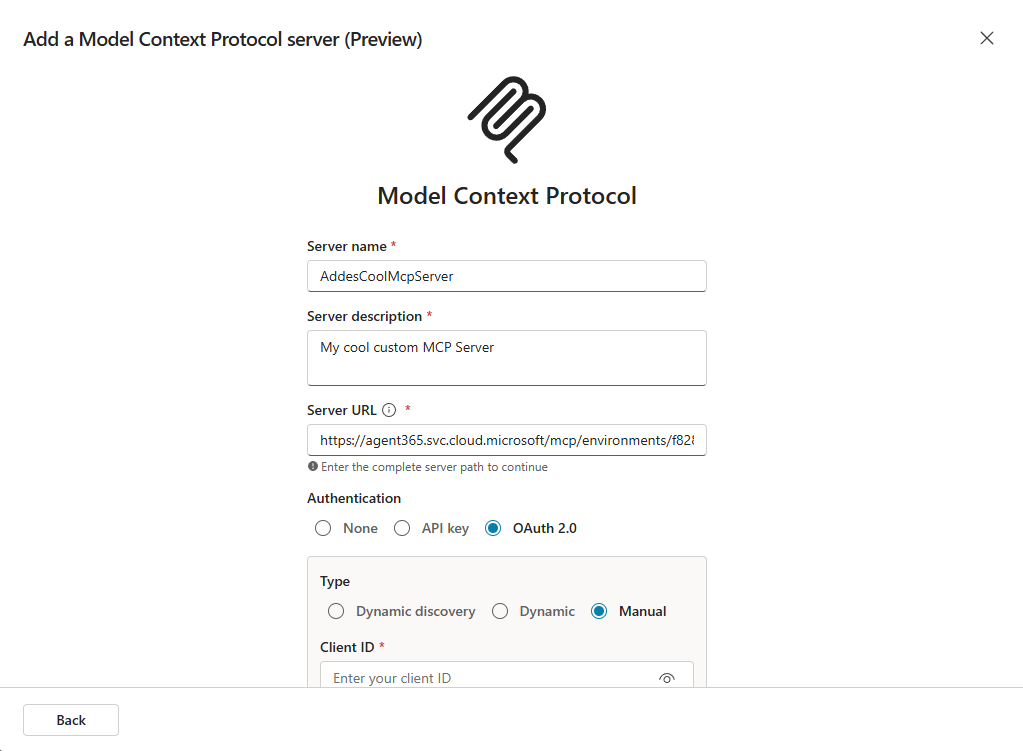
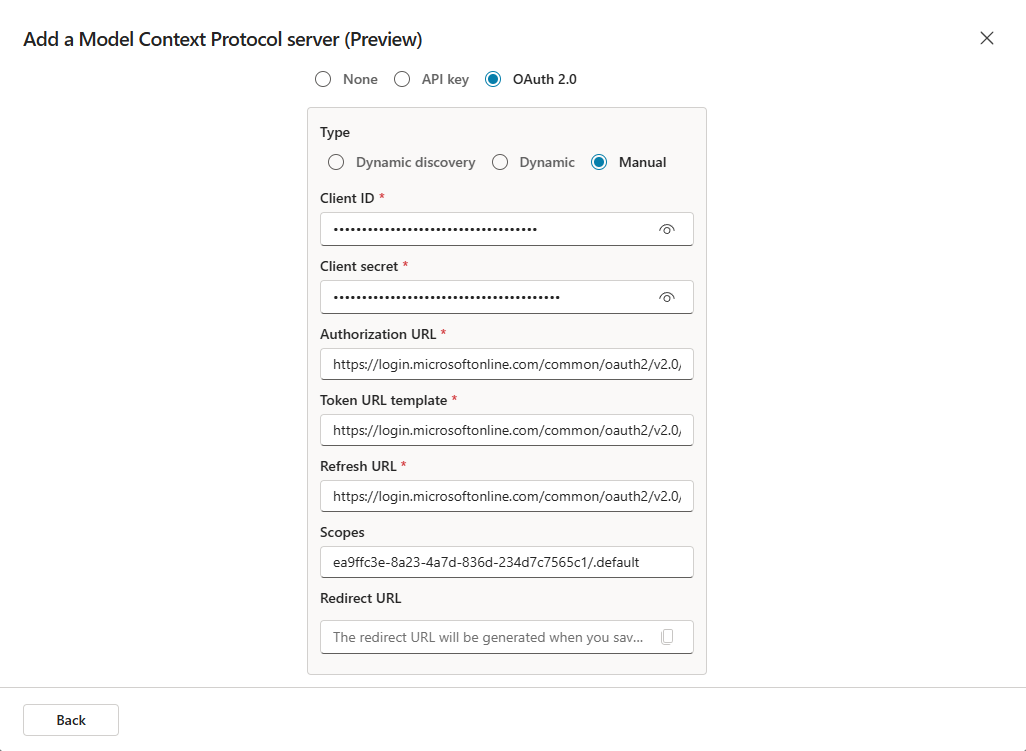
Enter the authorization URL and the token URL (if you want to know how to get these URLs using MCP Inspector, check out this blog post).
- The Refresh URL can be set to the same URL as the Token URL Template.
- The
ea9ffc3e-8a23-4a7d-836d-234d7c7565c1/.defaultscope is a blanket request to get all scopes that we previously defined for our App Registration (we only added one - theMcpServers.DataverseCustom.Allscope, which is the one that is needed here, but.defaultis a shorthand for getting all of them). - The GUID
ea9ffc3e-8a23-4a7d-836d-234d7c7565c1is simply the ID of theAgent 365 Toolsapplication, which we added as an API permission to our app registration earlier.
Hit Create and a redirect URL is generated for you:
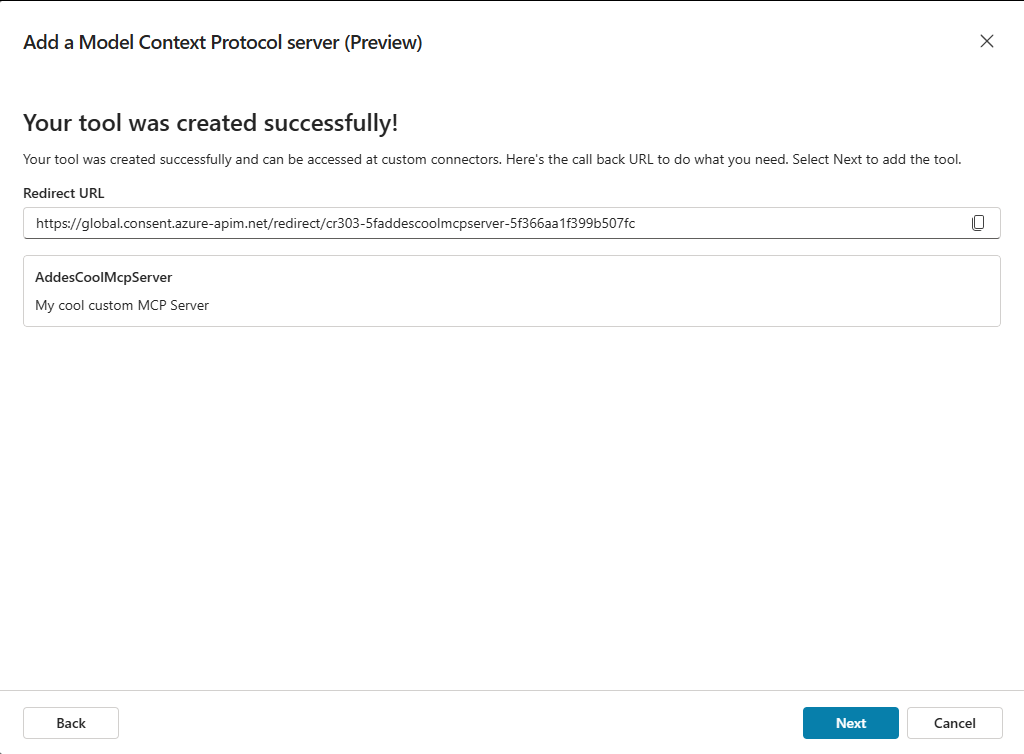
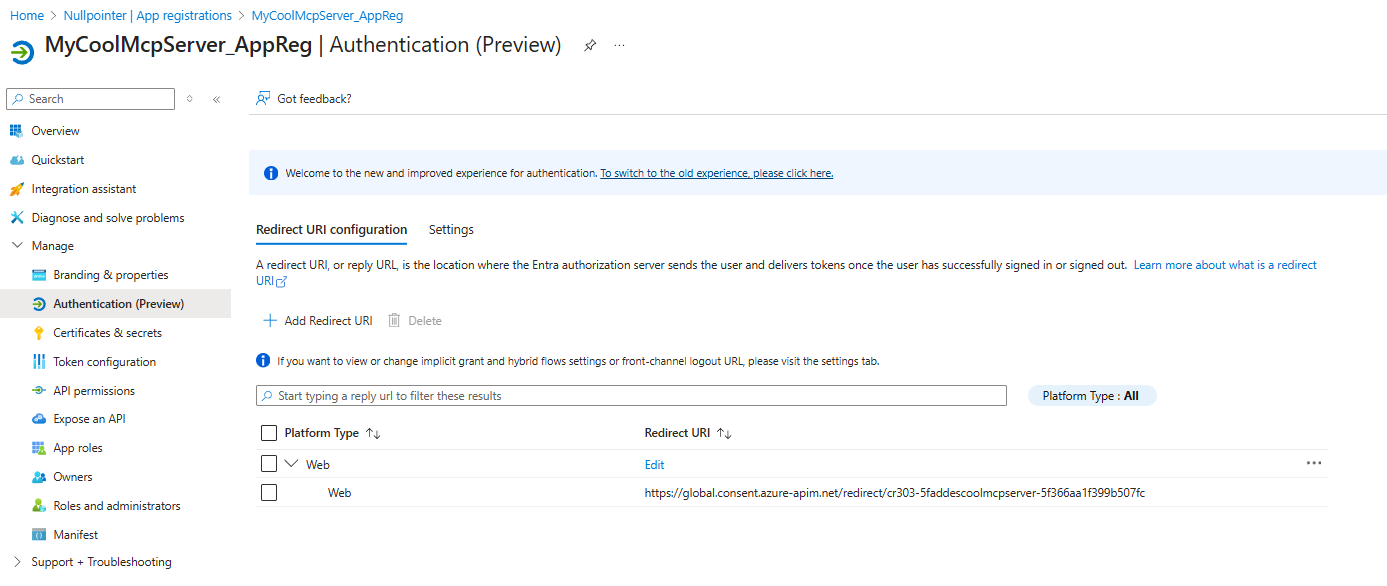
Go back to your App Registration and create a Web Redirect URL that points to this URL:
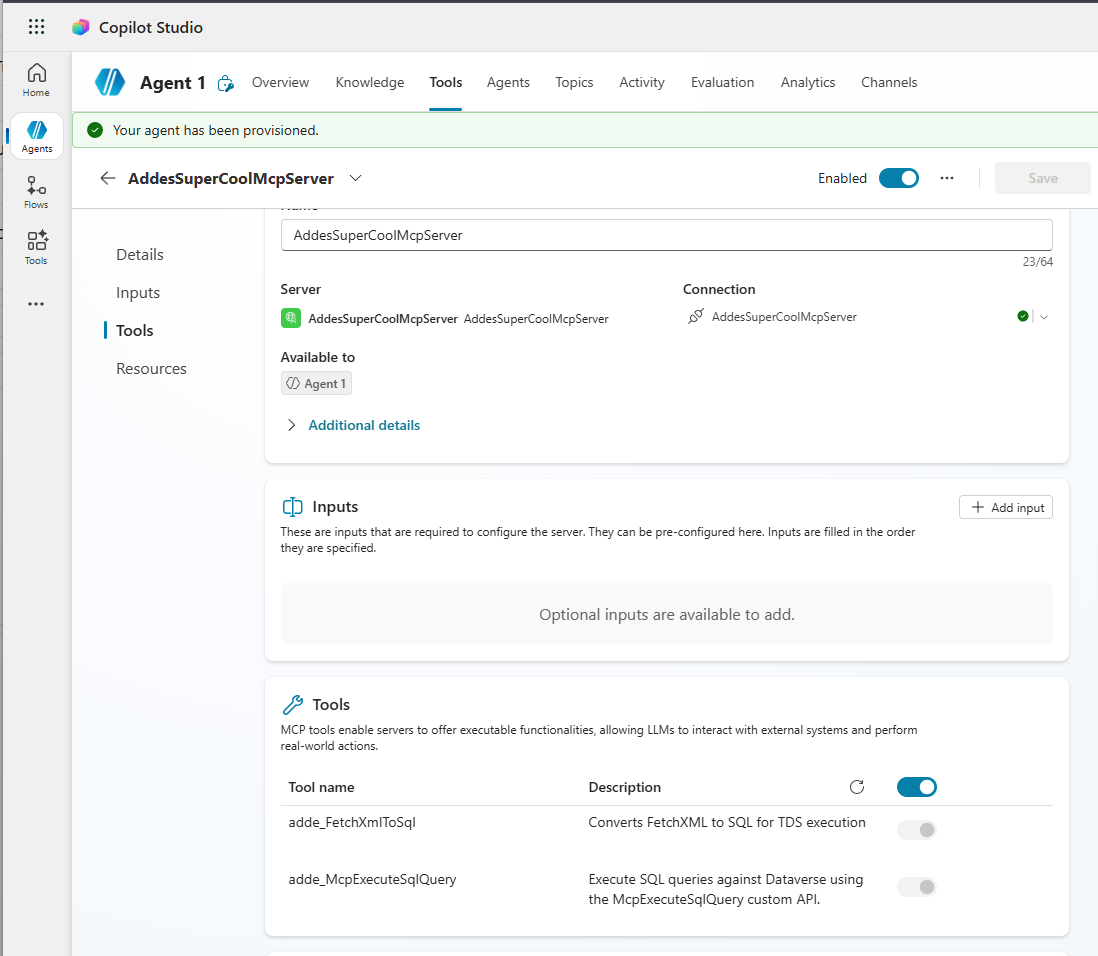
If everything worked out well, the MCP Server is now added to Copilot Studio:
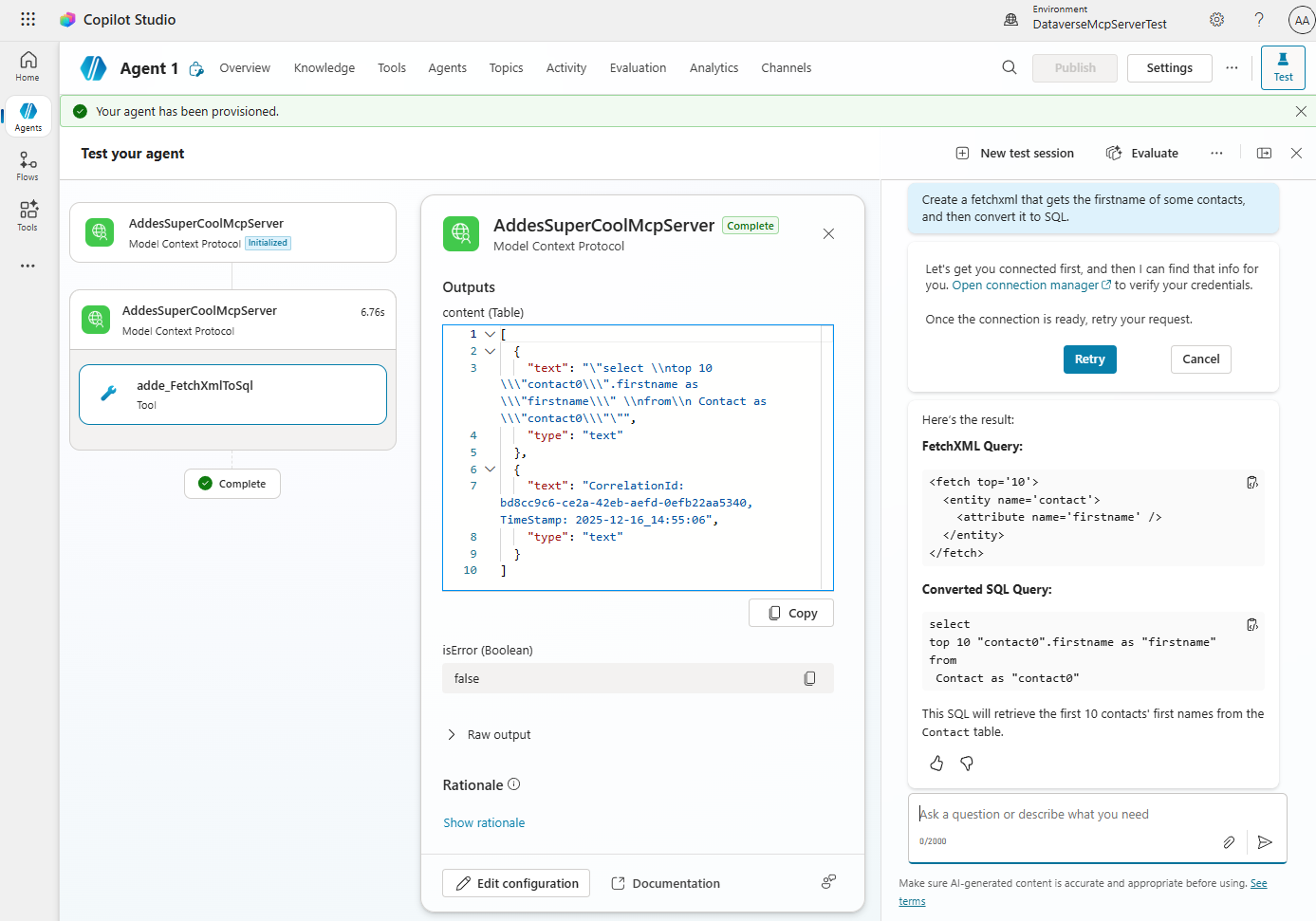
Let’s try it by asking the agent to convert a FetchXML query to SQL:
…and run the resulting SQL query against Dataverse:
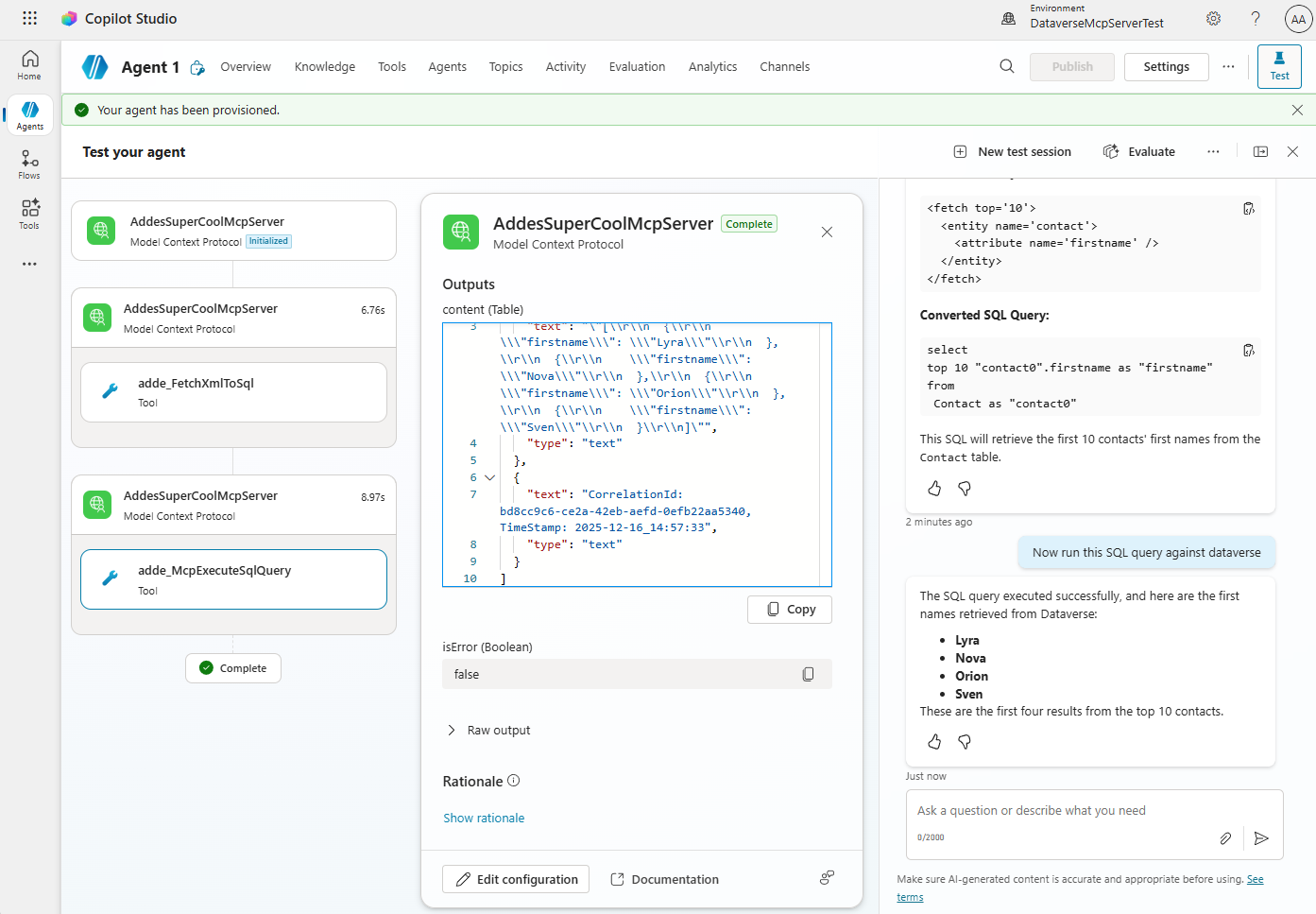
Great success! We now have a Copilot Studio agent that uses the MCP Server that we created dynamically. Here is a video of it in action:
It was fun tinkering around with this and the possibility to create dynamic MCP Servers is really powerful. The documentation is still catching up with all the capabilities, but that’s to be expected for such new technology. I’m excited to see how this evolves as Agent 365 matures.
Until next time, happy hacking!